🌐 Эта страница еще не переведена на русский. Показана португальская (BR) версия. Помочь с переводом.
Music Player
Reprodutor de música pra sua biblioteca pessoal. Aquela coleção de FLACs, MP3 ripados do CD, podcasts baixados, gravações ao vivo que você acumulou ao longo de anos. Tudo num player que funciona em qualquer dispositivo logado, celular, tablet, notebook, Smart TV, com streaming direto do HD de casa, background playback (tela desligada continua tocando) e visualizador de espectro real.
Pense Spotify, mas com seus próprios arquivos e sem mensalidade.
Destaques
Playlists
Crie e organize playlists personalizadas com sincronização automática na nuvem.
Streaming de Rede
Ouça músicas do HD de casa, de qualquer lugar do mundo.
Background Playback
Continue ouvindo com a tela desligada no celular.
Visualizador
Animação em tempo real do espectro de frequências.
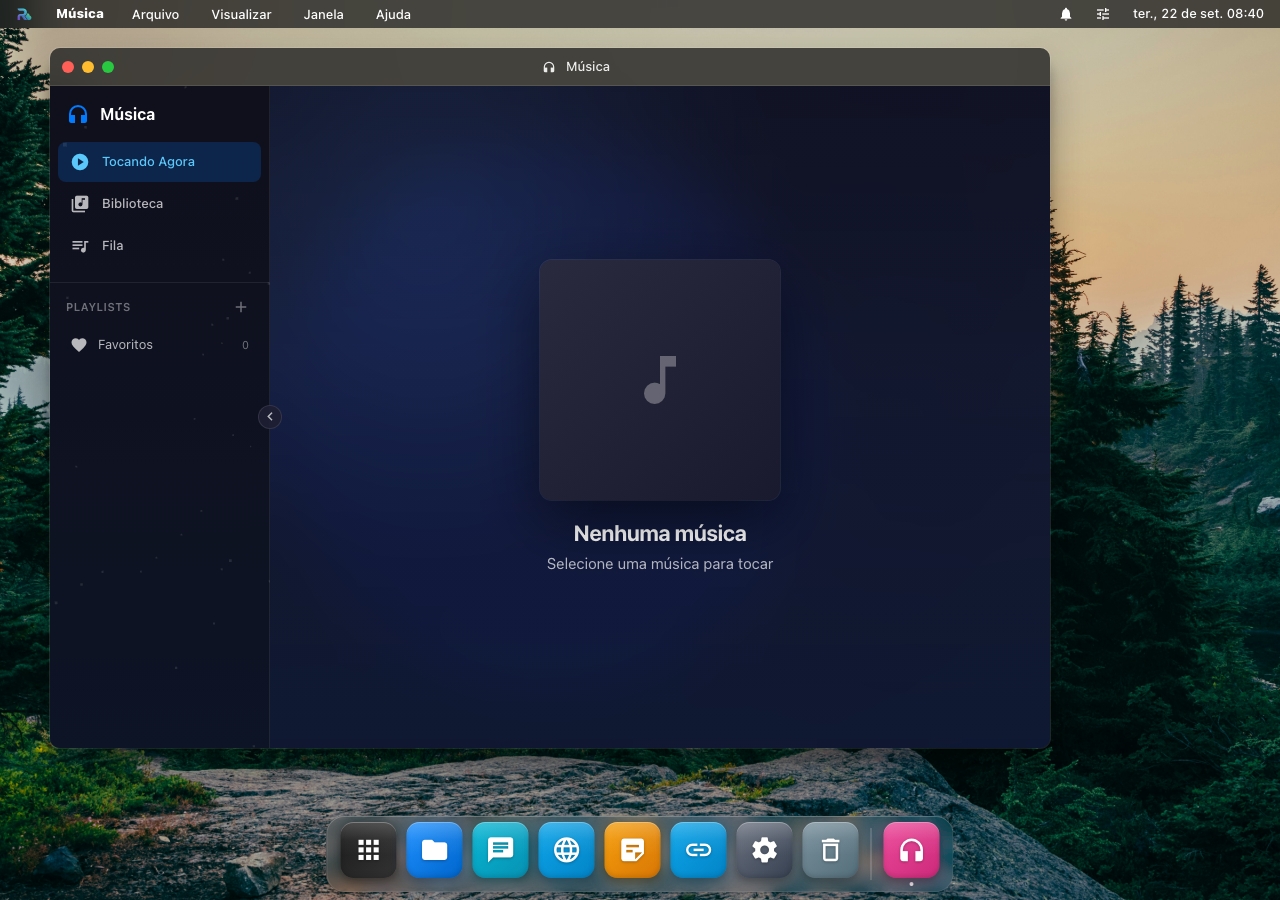
Adicionando Músicas
📁 Pelo Gerenciador de Arquivos
Localize um arquivo de áudio (.mp3, .wav, .ogg, .flac) no Gerenciador de Arquivos e dê um duplo clique. O Music Player abrirá automaticamente e começará a reproduzir.
🔗 Por URL
Cole a URL direta de um arquivo de áudio acessível pela internet. Útil para links diretos de hospedagem ou CDNs.
📂 Adicionar Pasta Inteira
Importe uma pasta inteira contendo múltiplos arquivos de áudio de uma só vez para a sua biblioteca.
💾 Do Disco de Rede Servidor
Navegue pelos discos mapeados do servidor e adicione pastas inteiras de músicas do seu HD.
▶️ Baixar do YouTube Servidor
Cole o link de um vídeo do YouTube e o áudio é baixado no seu RoqueOS Server e salvo na pasta de música compartilhada, depois é só tocar (e dá pra usar no modo Praticar também).
- O botão "Baixar do YouTube" aparece na barra lateral (e no drawer mobile) do Music Player quando o servidor conectado tem a extração de mídia ativada (
ENABLE_MEDIA_EXTRACT=true). - A música é extraída em
m4a(yt-dlp + ffmpeg no servidor) e aparece como uma faixa normal, tocável, adicionável a playlists e à pasta Compartilhados do Finder. - Baixar o mesmo vídeo de novo reutiliza o arquivo já salvo (não baixa duas vezes).
- Opt-in: quem liga a flag no servidor assume os Termos de Uso do YouTube. Desligado por padrão.
- Se o YouTube recusar o download (acontece sobretudo quando o servidor está num datacenter), o RoqueOS explica na hora e oferece conectar uma conta ali mesmo. Nada é pedido antes disso. Ao tocar em Entrar com o YouTube, a tela de login do Google abre dentro do RoqueOS, renderizada pelo seu próprio servidor: você digita ali, resolve o captcha se aparecer, e pronto. Funciona no navegador do celular também, e a sessão fica guardada no servidor. Use uma conta descartável, porque é a sessão inteira dela que o servidor passa a ter. No servidor de demonstração compartilhado esse botão não aparece: a senha passaria por uma máquina que não é sua.
📥 Baixados Servidor
A barra lateral ganha uma seção "Baixados" que lista tudo que está na pasta de música compartilhada (/shared/Music). Clique numa faixa pra tocar, ou em "Tocar tudo" pra enfileirar todas, sem precisar abrir o Finder pra achar o que você baixou.
Praticar (pitch / tempo / loop)
Modo de estudo pra músico tocar junto com qualquer faixa da biblioteca. Abre como uma folha deslizante por cima do player, clique no botão "Praticar" na tela de "Tocando agora". Pensado pra quem está aprendendo um solo, treinando um trecho difícil ou montando um backing track.
O que dá pra fazer:
- Tom (pitch): transpõe a música em semitons (ex.: −2 pra afinar com violão em meio tom abaixo), sem mexer no andamento.
- Ajuste fino: correção em cents, pra casar exatamente com um instrumento desafinado.
- Andamento (tempo): deixa a faixa mais lenta pra estudar um trecho rápido, sem mudar o tom. Pitch e tempo são independentes.
- Loop A-B: marca um ponto A e um ponto B na forma de onda e repete só aquele trecho infinitamente. Ideal pra cravar uma passagem.
- Remover vocais: cancela o que está no centro da mixagem (geralmente o vocal). Método karaokê simples, bom pra usar a música como backing track.
Os ajustes ficam lembrados
Quando você reabre a mesma faixa no modo Praticar, o tom, o tempo e o loop que você tinha configurado voltam (aparece o selo "Ajustes lembrados"). No celular, arraste a folha pra baixo pra fechar.
Engine de alta qualidade
O pitch/tempo independentes usam uma engine de processamento de áudio que decodifica o arquivo inteiro. Em dispositivos muito antigos que não a suportam, o modo Praticar ainda toca, mas em modo simples (o pitch acompanha o tempo).
Separar Instrumentos
Divide a música em quatro faixas independentes (bateria, baixo, vocal e o resto) pra você ouvir, isolar ou silenciar cada uma. É o que serve pra tirar uma linha de baixo de ouvido, estudar a levada da bateria ou usar a música como playback sem o vocal.
Abra pelo botão "Separar instrumentos" na tela de "Tocando agora". A separação roda no seu servidor (Server Mode), não na sua aba: mandar a música, processar e devolver leva alguns minutos na primeira vez. Depois disso a mesma música volta na hora, já separada.
Com as quatro faixas na tela você tem uma pequena mesa de mixagem:
- S (solo) deixa só aquela faixa tocando, M (mudo) cala ela, e o cursor ajusta o volume de cada uma.
- Tom, andamento e loop A-B funcionam igual ao modo Praticar, e valem pra mistura inteira.
- Salvar nos Arquivos guarda a faixa isolada como MP3 na sua pasta, pra usar onde quiser.
Do baixo direto pra Tablatura
Nas faixas de baixo e vocal aparece um botão a mais, "Abrir na Tablatura": ele escuta a faixa isolada, reconhece as notas e monta uma tablatura de verdade no app Tablatura, já no andamento da música e pronta pra editar.
O botão só existe nessas duas faixas de propósito. O reconhecimento entende uma nota por vez, que é como baixo e voz normalmente soam. Bateria não tem altura definida, e a faixa "outros" costuma trazer guitarra ou teclado tocando acordes: ali não existe "a" nota, e o resultado sairia errado. Preferimos não oferecer a ficar bonito e entregar tablatura torta.
Precisa de Server Mode
A separação exige um servidor RoqueOS com o módulo instalado. Sem ele o app diz isso na cara, em vez de mostrar um botão que não faz nada.
Streaming de Disco de Rede
Como Funciona?
- Seus arquivos MP3 estão no HD do seu computador ou servidor
- Esses arquivos são mapeados como volumes no RoqueOS Server
- O Music Player acessa via streaming HTTP pelo servidor
- Você ouve de qualquer dispositivo conectado à internet
Passo a Passo
1. Mapeie a pasta de músicas no docker-compose.yml:
services:
  roqueos-server:
    volumes:
      - ./data:/app/data
      - /var/run/docker.sock:/var/run/docker.sock
      - /home/usuario/Musicas:/app/disks/Musicas # ← Seu HD de músicas
2. Reinicie o servidor:
docker compose down && docker compose up -d3. No RoqueOS, abra o Music Player e adicione a pasta de rede:
- Clique no botão de adicionar pasta
- Navegue até o disco Musicas no seletor de rede
- Selecione a pasta desejada e confirme
- Todas as músicas da pasta serão importadas para sua biblioteca
4. Pronto! Ouça de qualquer lugar.
Se estiver usando Cloudflare Tunnels para acesso externo, o streaming funciona de qualquer lugar do mundo com conexão à internet.
Reprodução em Segundo Plano (Background Playback)
Como funciona no celular?
O RoqueOS utiliza a Media Session API do navegador, que permite:
- Tela desligada: A música continua tocando normalmente
- Controles na tela de bloqueio: Play, pause, próxima e anterior aparecem na notificação do sistema
- Controles no fone: Botões do fone de ouvido Bluetooth funcionam normalmente
- Trocar de app: A música não para quando você abre outros aplicativos
Requisitos
- Usar o RoqueOS via PWA instalada ou app nativo (iOS/Android)
- O navegador Chrome, Safari ou Edge em versão recente
- No iOS, a PWA deve estar instalada na tela inicial para background playback funcionar
DICA
Para a melhor experiência de streaming no celular, instale o RoqueOS como PWA ou baixe o app nativo na App Store ou Microsoft Store.
Gerenciamento de Playlists
Criar uma Playlist
- Na área de Playlists no painel lateral, clique em + Nova Playlist
- Dê um nome para a playlist
- Arraste músicas da biblioteca para a playlist, ou use o menu de contexto da música
Organizar
- Reordenar: Arraste músicas dentro da playlist para mudar a ordem
- Remover: Clique com botão direito em uma música e selecione "Remover da playlist"
- Renomear: Clique no nome da playlist para editá-lo
- Deletar: Remova a playlist inteira pelo menu de contexto
Sincronização
Todas as playlists e a biblioteca de músicas são sincronizadas automaticamente na sua conta. Se você criar uma playlist no computador, ela aparecerá no celular na próxima vez que abrir o Music Player.
Visualizador de Áudio
O Music Player possui um visualizador de espectro de frequências em tempo real que reage à música tocando. A animação mostra as frequências graves, médias e agudas em barras coloridas que dançam conforme o ritmo.
NOTA SOBRE CROSS-ORIGIN
O visualizador funciona perfeitamente com arquivos locais e de mesma origem. Para streams de disco de rede em domínios diferentes (ex: acessando casa.roqueos.com enquanto o app roda em localhost), o visualizador usa um modo de pulso alternativo por restrições de CORS do navegador, a música continua tocando normalmente.
Widget de Mídia no Desktop
Quando uma música está tocando, um mini player aparece na barra de tarefas do RoqueOS, permitindo controle rápido sem precisar abrir a janela do Music Player:
- ⏯️ Play / Pause
- ⏭️ Próxima faixa
- ⏮️ Faixa anterior
- 🔊 Controle de volume
Quando a música não toca
| O que acontece | Por quê | O que fazer |
|---|---|---|
| A biblioteca aparece vazia depois de apontar a pasta | a pasta está no servidor e não há servidor conectado, ou o caminho não existe lá dentro | confira a conexão em Ajustes → Servidor e o caminho no docker-compose.yml |
| A faixa aparece na lista mas não toca | formato que o navegador não decodifica — FLAC no Safari é o caso mais comum | veja a tabela de formatos abaixo; converta a faixa, ou use outro navegador |
| A música para quando a tela apaga no celular | o navegador suspendeu a aba | ligue a Reprodução em Segundo Plano; no iPhone ela depende de o app estar instalado como PWA |
| O visualizador fica parado | o navegador bloqueou o áudio antes do primeiro toque | toque uma vez na tela: o áudio só é liberado depois de uma interação |
| Streaming do disco de rede engasga | a faixa está vindo por Wi-Fi fraco ou o disco dormiu | teste com a máquina no cabo; discos externos que hibernam demoram no primeiro play |
Formatos Suportados
| Formato | Extensão | Suporte |
|---|---|---|
| MP3 | .mp3 | ✅ Todos os navegadores |
| WAV | .wav | ✅ Todos os navegadores |
| OGG Vorbis | .ogg | ✅ Chrome, Firefox, Edge |
| FLAC | .flac | ✅ Chrome, Edge, Safari 14.1+ |
| AAC | .aac, .m4a | ✅ Todos os navegadores |
| WebM Audio | .webm | ✅ Chrome, Firefox, Edge |
Dicas de Uso
DICAS RÁPIDAS
- Duplo clique em uma música na biblioteca para tocá-la imediatamente
- Use o menu de contexto (clique direito) para adicionar músicas a playlists
- O player lembra a posição e fila de reprodução ao reabrir o app
- Para melhor qualidade de streaming remoto, use formatos compactos como MP3 ou AAC
- Com Cloudflare Tunnels, o streaming funciona globalmente sem expor portas