🌐 This page is not yet translated to English. Showing Portuguese (BR) reference. Help translate this page on GitHub.
Como Usar o OpenClaw
Guia prático para aproveitar ao máximo o agente autônomo de IA do RoqueOS.
Interface do Agente
O app do Agente IA é dividido em duas áreas principais:
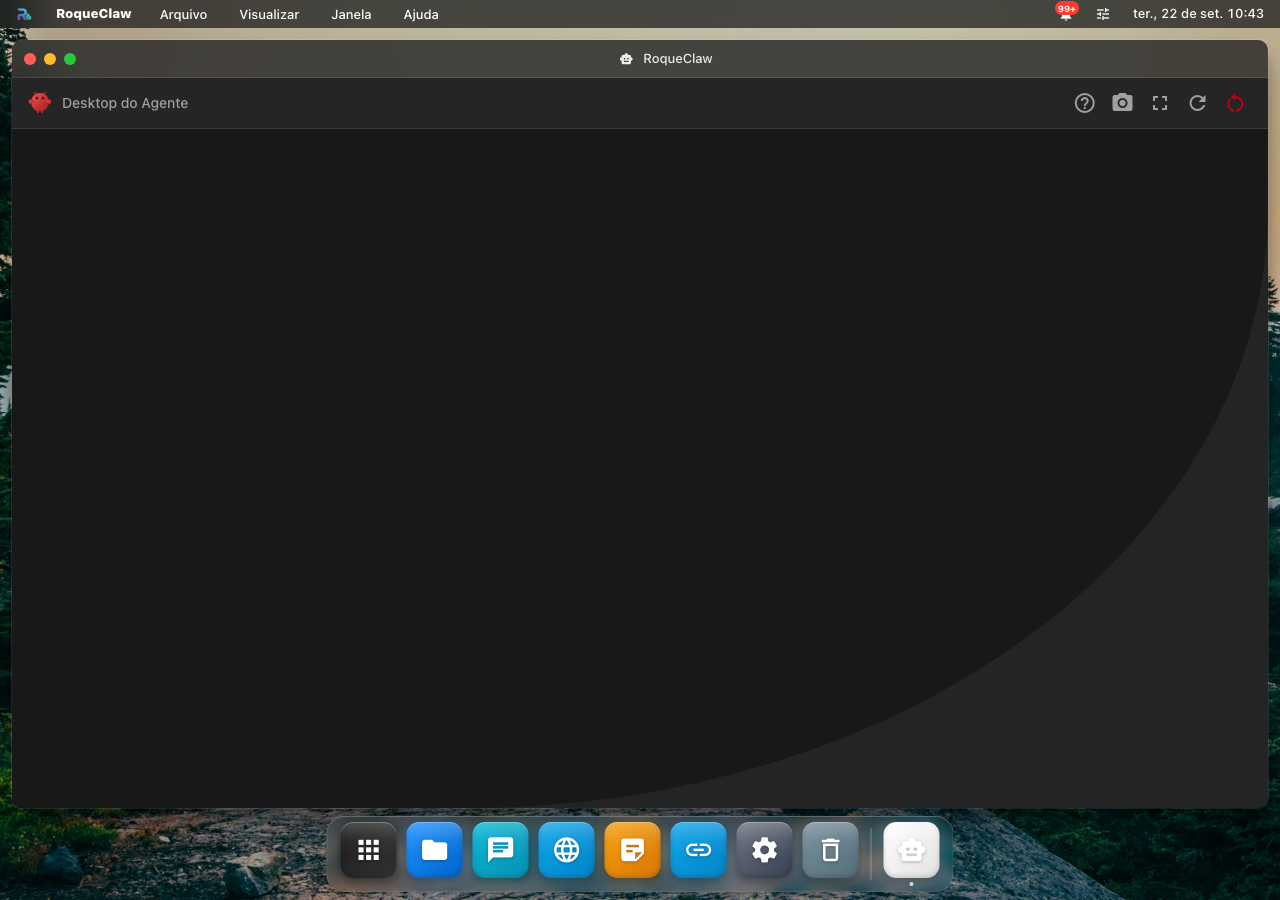
- Painel de Chat (esquerda) — onde você envia mensagens e acompanha as respostas
- Visualização do Desktop (direita) — stream ao vivo do que o agente está fazendo no container
Painel de Steps
Abaixo do chat, um painel de Steps em Tempo Real mostra cada ação que o agente está executando: navegando para uma URL, clicando em um elemento, executando um comando, etc.
Antes de começar
| Você precisa de | Por quê |
|---|---|
| servidor conectado | o agente é um container do servidor, não do navegador |
| o container do OpenClaw instalado | ver Configuração |
| a chave de API do modelo cadastrada | sem ela o agente falha na primeira tarefa |
O que acontece quando você manda uma tarefa
Criando uma Sessão
Cada conversa com o agente cria uma sessão — um container Docker isolado com um desktop Linux exclusivo. Para iniciar:
- Abra o app Agente IA no Launchpad.
- Clique em Nova Sessão.
- O container será inicializado (pode levar 10–30 segundos na primeira vez).
- Quando o desktop aparecer no painel direito, o agente está pronto.
Enviando Tarefas
Boas Práticas para Prompts
Seja específico e objetivo ao descrever a tarefa. Quanto mais contexto você fornecer, melhor o resultado.
❌ Vago:
Pesquise sobre Docker✅ Específico:
Pesquise as 5 principais diferenças entre Docker Compose v2 e v3,
crie um arquivo markdown resumindo os pontos e salve em /home/user/docker-comparison.md
Exemplos de Tarefas
Pesquisa e documentação:
Acesse o site hetzner.com, encontre os planos de VPS disponíveis
e crie uma tabela comparativa com preços e recursos em CSV.
Automação de formulários:
Preencha o formulário de cadastro em [URL] com os dados:
nome: João Silva, email: joao@exemplo.com, plano: básico
Desenvolvimento:
Crie um script Python que faça scraping dos títulos de notícias
do Hacker News e salve os 10 primeiros em um arquivo JSON.
Análise de sites:
Acesse este repositório GitHub [URL], leia o README e me explique
o que o projeto faz e quais são os pré-requisitos de instalação.
Ações que o agente executa no seu RoqueOS
O RoqueClaw não fica preso no container isolado — ele atua direto no seu desktop RoqueOS via o CLI roqueos-cli que está pré-instalado no container do agente E no container do Terminal app de cada usuário do servidor.
As 6 ações canônicas
| Comando CLI | O que faz | Exemplo de prompt que dispara |
|---|---|---|
roqueos-cli notify "title" "msg" | Notificação no seu desktop | "Me avisa quando terminar" |
roqueos-cli open-app <id> | Abre app no Launchpad | "Abre o VS Code" |
roqueos-cli open-url <url> | Abre URL no Roque Browser | "Abre o GitHub do projeto" |
roqueos-cli create-file <path> | Escreve arquivo (lê stdin) | "Salva esse resumo no Notes" |
roqueos-cli run-terminal <cmd> | Executa comando + retorna output | "Mostra quanto disco eu tenho livre" |
roqueos-cli show-dialog "msg" | Modal de confirm (pausa, espera) | "Pergunta antes de apagar" |
Você também pode usar o CLI direto (sem agente)
O CLI fica disponível no app Terminal de cada usuário (container Ubuntu isolado). Abra o Terminal no Launchpad, digita roqueos-cli --help e usa direto.
Casos de uso comuns:
# Notificação rápida de script de backup
./backup.sh && roqueos-cli notify "Backup OK" "23 GB sincronizados"

# Abrir o VS Code direto do shell quando build terminar
yarn build && roqueos-cli open-app vscode

# Cron que avisa quando disco passa de 80%
0 9 * * * df -h | awk '$5+0 > 80 {system("roqueos-cli notify \"Disco cheio\" \"" $6 " " $5 "\"")}'

# Script Python escrevendo direto no Files do user
echo "$(date): meeting notes" | roqueos-cli create-file "/home/user/notes/reuniao-$(date +%F).md"

# Container Plex te avisa quando transcode terminar
# (dentro do container Plex, se compartilhar a network do roqueos-server)
roqueos-cli notify "Plex" "Transcode 4K do filme X concluído"
Instalar containers via linguagem natural (poder oculto)
A ação mais usada do agente: instalar apps Docker direto do catálogo via roqueos-cli → API do servidor → appsService.installApp.
Você diz: "Instala o Nextcloud, 2GB de RAM, e abre quando estiver pronto"
O agente faz (você vê ao vivo via VNC):
- Identifica
nextcloudno catálogo - Chama
roqueos-cli→ POST/apps/installcomappId: nextcloud, memory: 2048 - Aguarda container subir + healthcheck
- Chama
roqueos-cli open-url http://localhost:<porta_atribuída> - Notifica "Nextcloud pronto, login inicial admin/admin"
Mesma API do App Store visual — só que sem você navegar/clicar. Útil pra:
- Setup massivo: "Instala Plex, Sonarr, Radarr, Bazarr e qBittorrent. Configura todos pra usar o storage
/media." - Stack inteira: "Sobe uma stack LAMP com MariaDB e phpMyAdmin"
- Recovery: "Reinstala todos os apps que eu tinha antes do crash"
Gerenciando Sessões
Sessões Ativas
Todas as sessões ativas ficam listadas no topo do app. Você pode:
- Retomar uma sessão anterior clicando nela
- Encerrar uma sessão para liberar recursos do servidor
Limite de Sessões Simultâneas
Por padrão, o servidor permite até 3 sessões simultâneas (configurável via AGENT_MAX_SESSIONS). Encerre sessões que não está mais usando para economizar RAM.
Screenshot e Fullscreen
- Screenshot — clique no ícone de câmera para capturar o estado atual do desktop do agente
- Fullscreen — expanda a visualização do desktop para tela cheia para acompanhar melhor tarefas visuais
Limitações Conhecidas
- O agente opera em um ambiente isolado — não tem acesso direto aos seus arquivos locais a menos que você forneça as informações via chat
- Tarefas que requerem login em contas (email, redes sociais) precisam que você forneça as credenciais durante a conversa
- O timeout padrão de sessão é 30 minutos de inatividade — tarefas muito longas podem precisar de interação periódica
Solução de Problemas
Agente não responde
- Verifique se o servidor está online:
curl http://localhost:27021/health - Confirme que a chave de API está configurada corretamente
- Encerre a sessão atual e crie uma nova
Desktop não aparece no painel
O container pode ainda estar inicializando. Aguarde 30 segundos e recarregue o app.
Respostas lentas ou incompletas
Pode ser um problema de rate limit do provedor de IA. Aguarde alguns instantes e tente novamente, ou reduza a complexidade da tarefa.
Provedores de IA (configuração central)
Você configura suas chaves de IA uma única vez em Ajustes → Provedores de IA e todos os recursos que usam IA — Chat, Automações e Fluxos — passam a usar esses provedores. Em cada um deles, o antigo formulário de provedor + modelo + chave foi substituído por um seletor de modelo padrão: toque no campo "Modelo de IA", escolha um modelo entre os provedores configurados (principal e, opcionalmente, um de reserva) e pronto.
- Provedores suportados: OpenAI, Anthropic, Groq, Mistral, DeepSeek, OpenRouter, Together, xAI e Google — além de um LLM local (LM Studio / Ollama), que pode ser exposto de qualquer lugar via um túnel Cloudflare gerado com um toque.
- A chave nunca é digitada por item: ela é guardada criptografada no seu servidor e resolvida na hora de executar. Se preferir, o seletor permite um override por item ("Usar credenciais próprias") para uma chave/endpoint específicos.
- Compatível com o que já existe: automações, fluxos e agentes criados antes continuam funcionando sem mudança.
Veja Ajustes → Provedores de IA para adicionar chaves, listar modelos disponíveis e gerenciar conexões locais.