Signing in on Android
Before you start
You need the installed RoqueOS app or an up-to-date browser on your phone. Connect to the internet to sign in or create an account.
Access RoqueOS
- Open RoqueOS and wait for the sign-in screen.
- Enter your account's email and password, then tap Sign in.
- To try RoqueOS without an account, scroll to Guest and confirm that you want to continue as a guest.
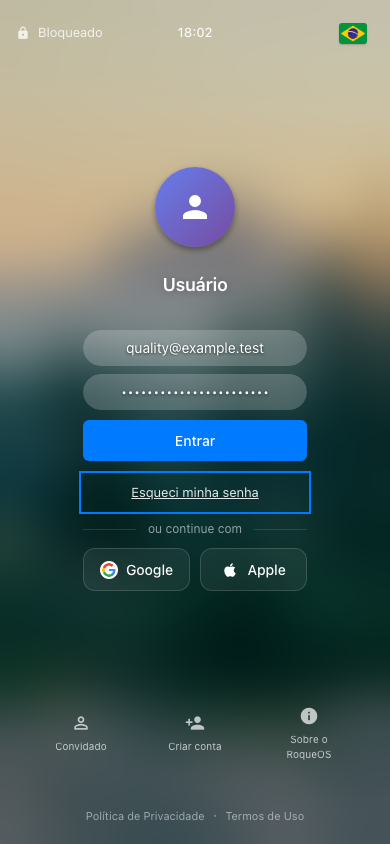
This capture uses a browser at phone size and fictional test input.
Use Forgot password? if needed; closing that window keeps the email you entered.
Create account opens registration. Use the window's close button to return to sign-in. Guest shows a confirmation before continuing without an account.
The Create account, Guest and About RoqueOS buttons may take more than one row on a small screen or with enlarged text. Scroll to reach them. The clock and status indicators at the top also rearrange to keep their labels readable.
When the keyboard is open, scroll to the field or button you need. Close the keyboard with Android's Back button to see the whole screen again. Rotating the phone takes the system bars' position into account.
The interface uses the language selected in RoqueOS. Adjust text size in Android's accessibility settings as needed.
Troubleshooting
| What you see | What to do |
|---|---|
| The keyboard covers part of the screen | Scroll to the control or close the keyboard with Android's Back button. |
| Footer buttons moved further down | Scroll the screen; enlarged text may put them on additional rows. |
| Registration does not close from the keyboard | Use the window's own close button. |
| Guest still shows a window | Read the confirmation and choose to continue as a guest. |