🌐 Esta página aún no está traducida al español. Mostrando referencia en portugués (BR). Ayúdanos a traducir.
Containers (Docker) Servidor
Gerenciador visual de containers Docker integrado ao RoqueOS. Substitui Portainer/Yacht/CasaOS com integração nativa: app abre direto no desktop do RoqueOS, sem precisar trocar de aba, sem precisar configurar reverse proxy manual.
Por que isso existe
Self-hosting tradicional tem 3 problemas crônicos:
- Instalar é chato — você lê tutorial de 30 passos, cola docker-compose.yml, ajusta volume, mexe firewall
- Atualizar é manual — você esquece de fazer
docker pullpor meses, fica com versão vulnerável - Acessar é confuso — cada app tem URL própria, cada porta exposta vira tela diferente
O RoqueOS resolve os 3:
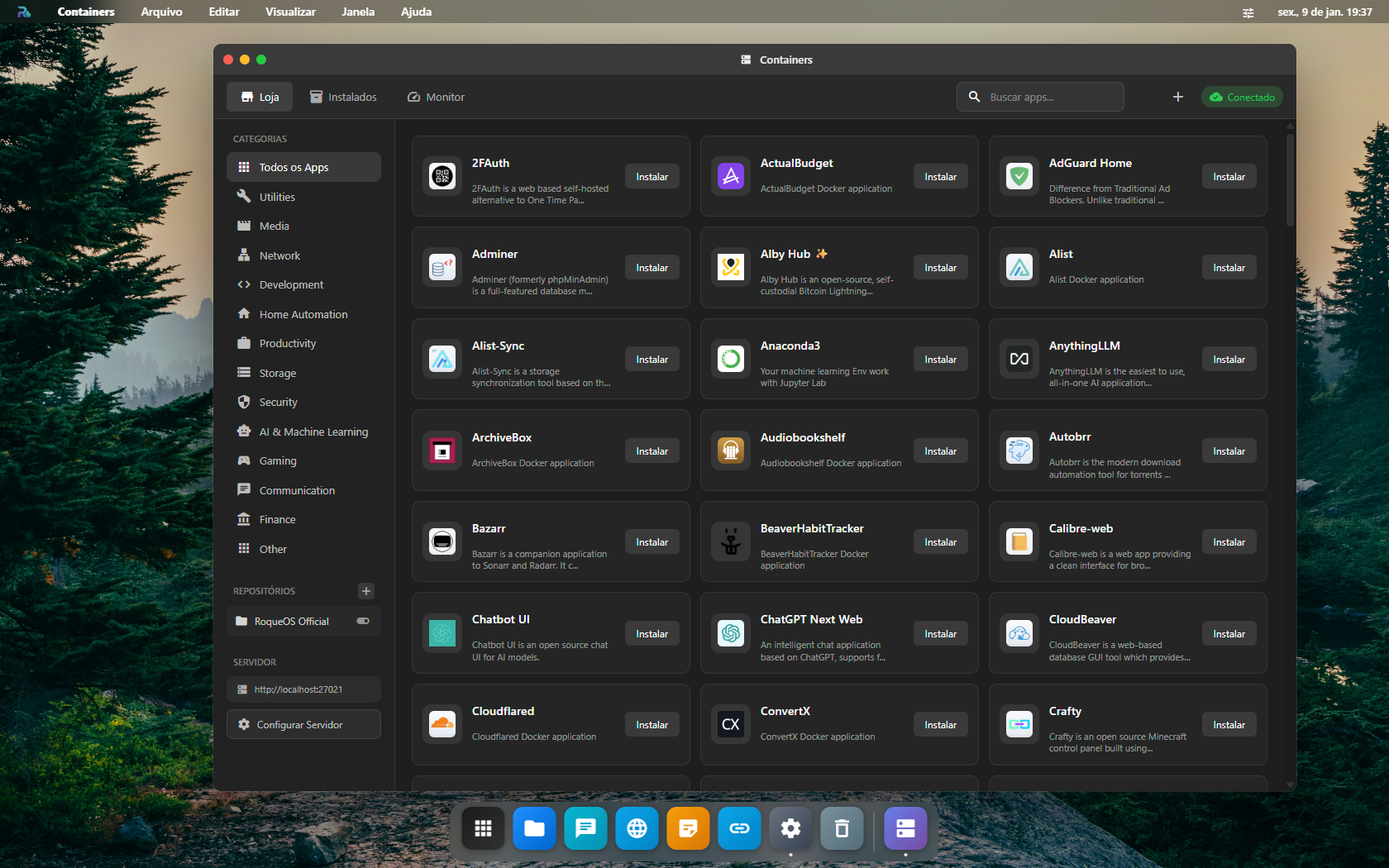
- ✅ 1 clique pra instalar qualquer app do catálogo (155+ apps curados)
- ✅ Update automático opcional ou manual em batch via UI
- ✅ Apps abrem dentro do RoqueOS como janelas do desktop (proxy reverso configurado automaticamente)
App Store Docker — catálogo curado
Catálogo de 155+ apps Docker prontos pra instalar com 1 clique:
| Categoria | Apps populares |
|---|---|
| Mídia | Plex, Jellyfin, Emby, Navidrome, Audiobookshelf |
| Download | qBittorrent, Sonarr, Radarr, Lidarr, Bazarr, Prowlarr, Jackett |
| Casa Inteligente | Home Assistant, Node-RED, ESPHome, Zigbee2MQTT |
| Cloud Pessoal | Nextcloud, Seafile, Syncthing, FileBrowser |
| Senhas / Notas | Bitwarden, Vaultwarden, Joplin Server, Memos |
| Monitoramento | Grafana, Prometheus, Uptime Kuma, Glances, Netdata |
| Desenvolvimento | Gitea, Drone CI, Verdaccio, Portainer, Code Server |
| Comunicação | Mattermost, Rocket.Chat, Matrix Synapse, Jitsi Meet |
| Produtividade | Vikunja, Wekan, AppFlowy, Trilium, BookStack |
| Visualização | Photoview, Immich, PiGallery2, Lychee |
| Adblock / DNS | Pi-hole, AdGuard Home, NextDNS |
| VPN | WireGuard, OpenVPN, Tailscale |
| Database | PostgreSQL, MySQL, Redis, MongoDB, MinIO, InfluxDB |
Antes de começar
| Você precisa de | Por quê |
|---|---|
| servidor conectado | quem roda os containers é o servidor, não o navegador |
| espaço em disco no servidor | cada imagem baixada ocupa de centenas de MB a alguns GB |
| ser administrador, no demo compartilhado | containers mexem em estado que é de todo mundo |
O que acontece quando você clica em Instalar
Instalar com 1 clique
- Abre Containers no Launchpad
- Aba App Store → busca ou navega por categoria
- Click em "Instalar" no card do app
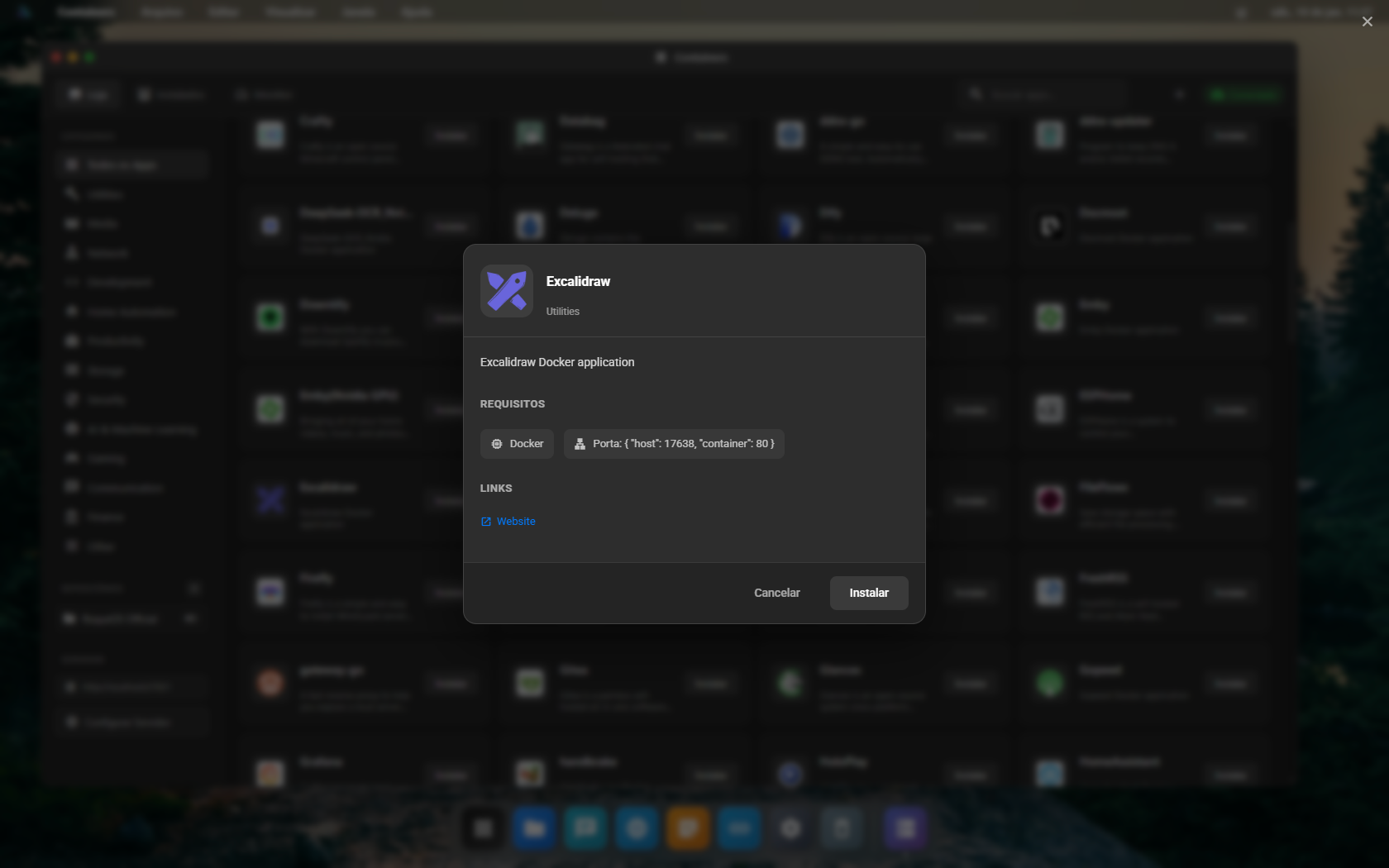
- Modal: ajuste porta (auto-sugerida sem conflito), RAM, volumes
- Confirmar → container baixa, sobe, configura proxy
- ~30-90s depois, app aparece no Launchpad pronto pra usar
Importar docker-compose existente
Você já tem stack Docker no servidor que NÃO veio do catálogo? Importe:
Via UI (aba "Importar"):
- Cole
docker run -d ...direto - Ou cole
docker-compose.ymlinteiro
O parser detecta image, ports, volumes, env vars, networks, depends_on — converte pra modelo interno + sobe os containers. Aparecem na lista "Instalados" como qualquer outro.
Via CLI (roqueos-cli):
# Dentro do Terminal
docker run -d --name minha-app -p 9000:9000 myimage:latest
# Aparece automaticamente em "Instalados" depois de ~5s (UI faz polling)
Gerenciar containers
Aba Instalados lista todos os containers com info live:
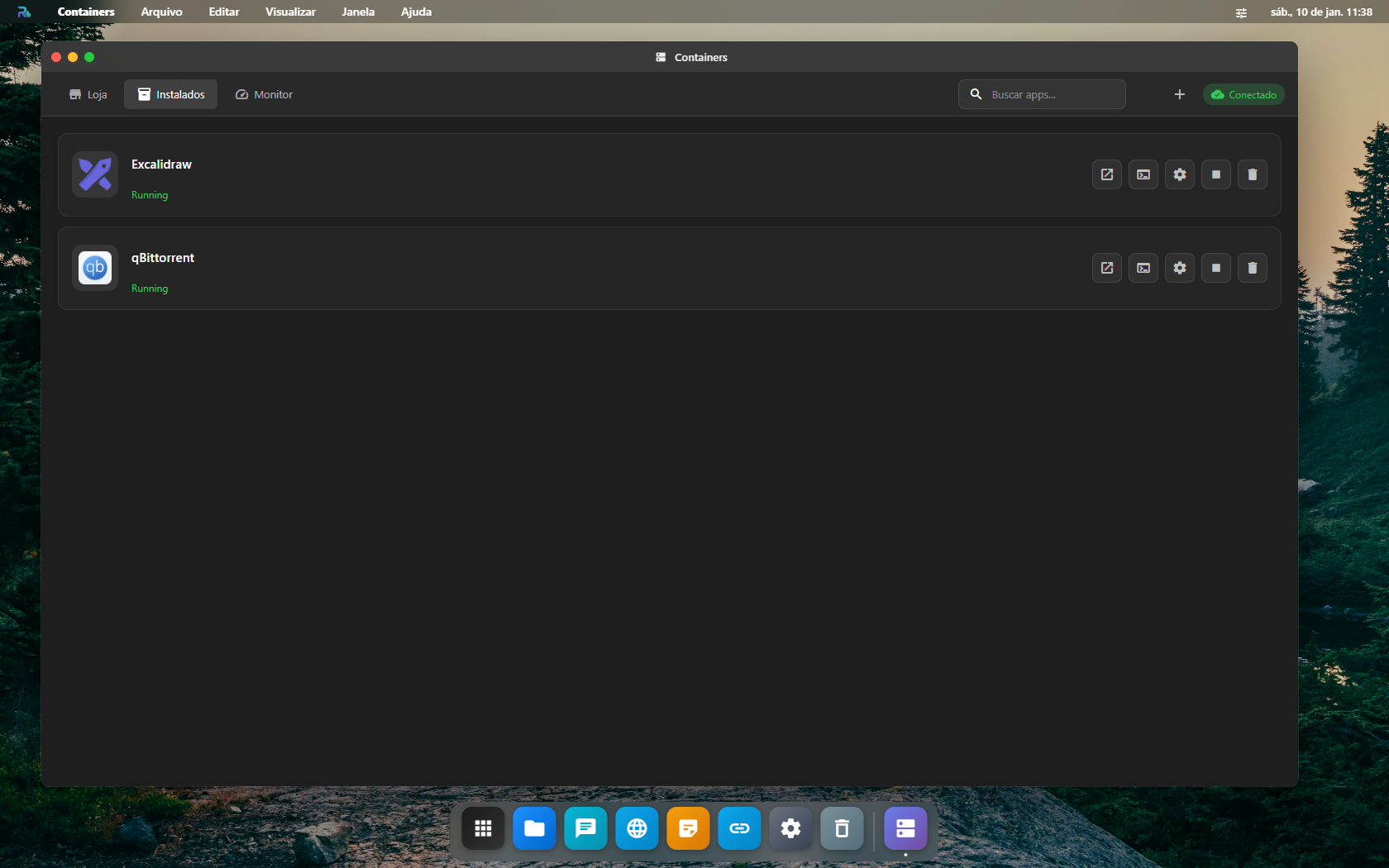
Por linha:
- 🟢 / 🔴 status (running / stopped / error)
- 📊 CPU + RAM em tempo real (atualiza a cada 5s)
- 🔗 Portas mapeadas + link "Open" pra abrir no Roque Browser
- 📅 Há quanto tempo subiu / quando atualizou pela última vez
- ⚙️ Menu de ações: Start/Stop/Restart, Logs, Terminal, Update, Remove
Ações de ciclo de vida
| Ação | O que faz |
|---|---|
| Start | Sobe container parado |
| Stop | Para sem remover (volume persiste) |
| Restart | Stop + Start (resolve 80% dos travamentos) |
| Update | docker pull + recreate (preserva volumes) |
| Reinstall | Remove container + reinstala do catálogo (mantém dados) |
| Remove | Stop + remove. Modal de confirmação pede pra escolher se mantém o volume |
Logs em tempo real
Click "Logs" → janela com docker logs -f. Filtro por nível (info/warn/error), busca por texto, auto-scroll, copy.
Terminal dentro do container
Click "Terminal" → shell bash (ou sh) dentro do container. Útil pra debug, mudar config, instalar dependência ad-hoc.
# Exemplo: investigar config do Plex
plex# cat /config/Library/Application\ Support/Plex/Preferences.xml
Configurações pós-install
Cada container tem ⚙️ "Configurações":
- 🏷️ Nome amigável (mostrado no Launchpad)
- 🖼️ Ícone customizado
- 🌐 Porta exposta (mudar sem precisar recriar)
- 💾 Volumes mapeados (ver/editar/adicionar)
- 🔐 Env vars (sensíveis ocultas)
- 🚀 Restart policy (
unless-stopped,always,on-failure,no) - 📡 Network bridge
Proxy reverso automático
Quando você instala um container com porta exposta, o RoqueOS automaticamente:
- Detecta a porta interna (ex: Plex escuta em
32400) - Mapeia pra porta externa disponível (ex:
32400ou próxima livre) - Configura proxy reverso no
roqueos-serverem/proxy/apps/<containerId> - App vira disponível como janela do desktop em
<servidor>/proxy/apps/<id>
Resultado: você abre Plex como app do RoqueOS, sem mexer em DNS / Cloudflare / nginx.
Pra expor publicamente (acesso de qualquer lugar), basta combinar com Cloudflare Tunnel — o tunnel pega o proxy reverso e expõe via HTTPS automático.
App Manager — gerenciar tudo de um lugar
Aba App Manager:
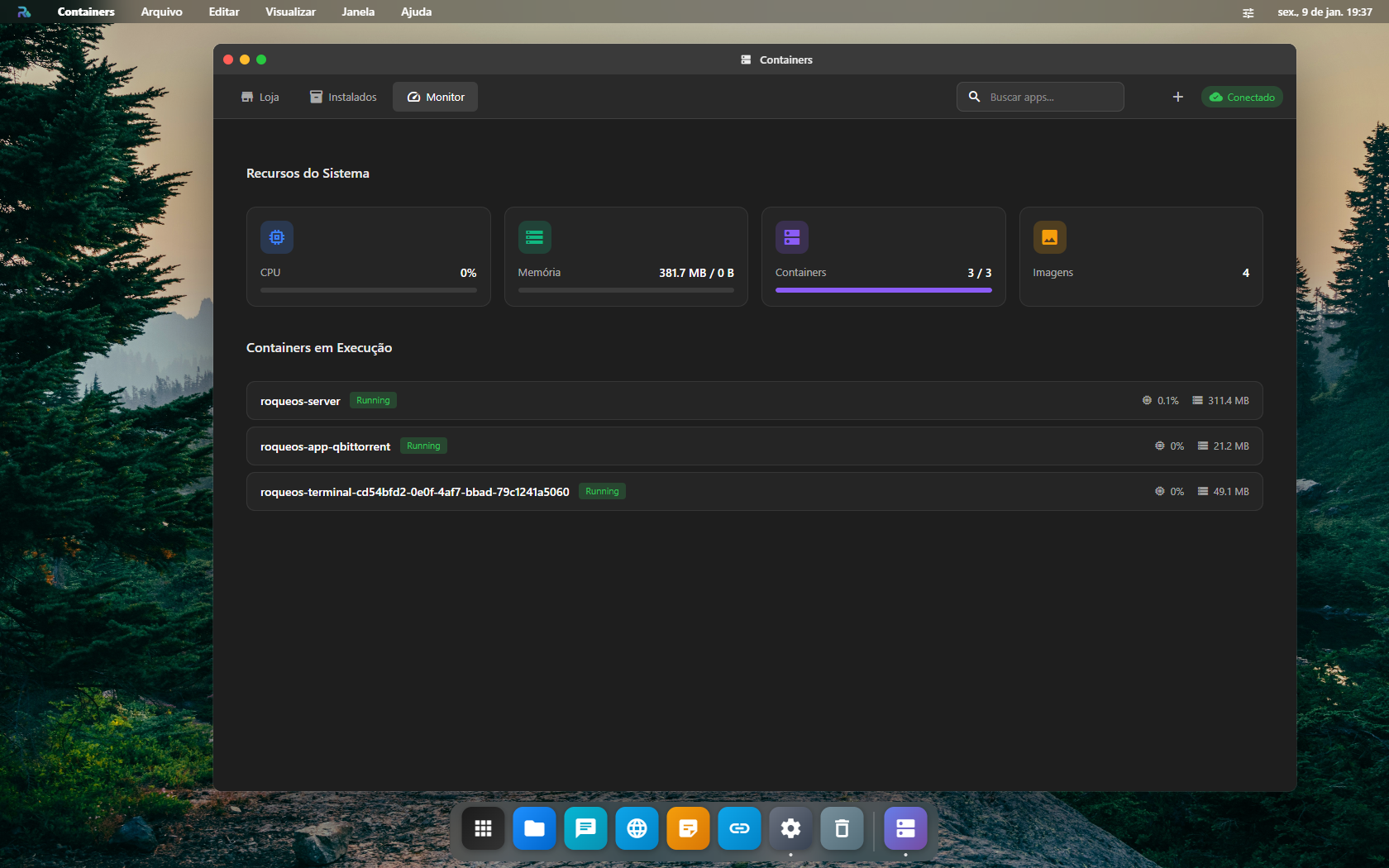
- 📊 Dashboard: CPU/RAM/disco usados pela soma de containers
- 🔄 Update batch: marca múltiplos containers + 1 click "Atualizar tudo"
- 🧹 Cleanup:
docker system prunecontrolado via UI (libera espaço sem afetar containers ativos) - 🚦 Health checks: lista containers que falharam o healthcheck últimas 24h
Mount-shared (compartilhar pasta entre apps)
Alguns apps precisam ler/escrever na mesma pasta — exemplo clássico:
- Sonarr/Radarr baixam arquivos via qBittorrent → pasta
/downloads - Plex/Jellyfin leem mesma pasta
/downloads(depois de organizar)
O RoqueOS sabe disso. Quando você instala um app que tem MOUNT_SHARED_APPS no manifest, o volume /data/roqueos/shared/<categoria> aparece automaticamente. Múltiplos apps montam ele.
Detalhes técnicos: Volumes e backup.
Limitações
- Apps que precisam GPU passthrough (Frigate com Coral USB, etc.) — funciona, mas requer configuração manual via UI (passar
--device=/dev/X) - Containers Docker que precisam acesso ao Docker socket (Portainer, Watchtower) — configuráveis via UI mas com warning de segurança (você está dando root effetivo)
- Imagens muito grandes (>5GB) — primeira instalação é lenta. Considere
docker pullantecipado via Terminal
Veja também
- App Store completo — listagem categorizada dos 155+ apps
- Volumes e backup — onde os dados ficam + estratégia de backup
- Server Admin Panel — gerencie usuários convidados, políticas, recursos
- Terminal Linux — alternativa CLI pra
dockerdireto - RoqueClaw — instala containers via linguagem natural ("instala Plex pra mim")