🌐 Esta página aún no está traducida al español. Mostrando referencia en portugués (BR). Ayúdanos a traducir.
Ferramentas de Mídia
Tudo que você precisa pra capturar, visualizar e reproduzir conteúdo audiovisual, sem baixar 5 apps diferentes, sem perder tempo configurando codecs. 5 ferramentas integradas, todas com salvamento direto no Finder e sincronização entre dispositivos.
📷 Câmera, a câmera do aparelho no navegador
Use a câmera do aparelho direto do RoqueOS para fotos e vídeos: a traseira e a frontal do celular, a webcam do notebook ou uma câmera USB.
Recursos
- 📸 Foto em JPEG, na resolução que você escolher: 480p, 720p, 1080p ou 4K (se a câmera tiver)
- 🎥 Vídeo em WebM, com o som do microfone e o tempo decorrido na tela
- 🔄 Trocar a câmera: aparece quando o aparelho tem mais de uma
- 🔍 Zoom: pinça no celular ou a barra embaixo do visor; o zoom do próprio aparelho quando ele tem, e um recorte do centro quando não tem (a foto sai igual ao que estava na tela)
- 🔦 Lanterna: aparece nos aparelhos que deixam o navegador acender a luz
- ⏱️ Temporizador de 3, 5 ou 10 segundos, com a contagem na tela
- 📐 Proporção: cheia, 1:1, 4:3 ou 16:9, recortada na hora de fotografar
- 🎨 Grade de terços ou áurea, espelho da câmera frontal e nível (com o sensor de movimento do celular)
- 💾 Salvar vai para a pasta Imagens do Finder, como
RoqueOS_Photo_<hora>.jpgouRoqueOS_Video_<hora>.webm; baixar e compartilhar também estão ali - 🖼️ O botão ao lado do disparador abre as Imagens no Finder, com a miniatura da última foto
Sem conta, a Câmera tira a foto e grava o vídeo, mas não salva em Arquivos: ela avisa que é preciso entrar, e baixar e compartilhar continuam funcionando.
Permissões
Na primeira vez, o navegador pede a câmera (e o microfone, só quando você passa para vídeo). Se você negar, a Câmera diz isso e explica onde liberar; depois de liberar nos ajustes do navegador, toque em Tentar novamente.
A imagem ao vivo não sai do seu aparelho. A foto ou o vídeo só sai quando você aperta salvar, baixar ou compartilhar, e fechar a janela desliga a câmera.
Casos de uso
- Reunião rápida: gravar 30 segundos para mandar pelo Chat sem abrir o app de câmera do aparelho
- Documentar trabalho: foto do quadro da sala ou da tela de outro aparelho, direto nas Imagens
- Foto quadrada para perfil, com a grade para centralizar
🖼️ Image Viewer, visualizador moderno
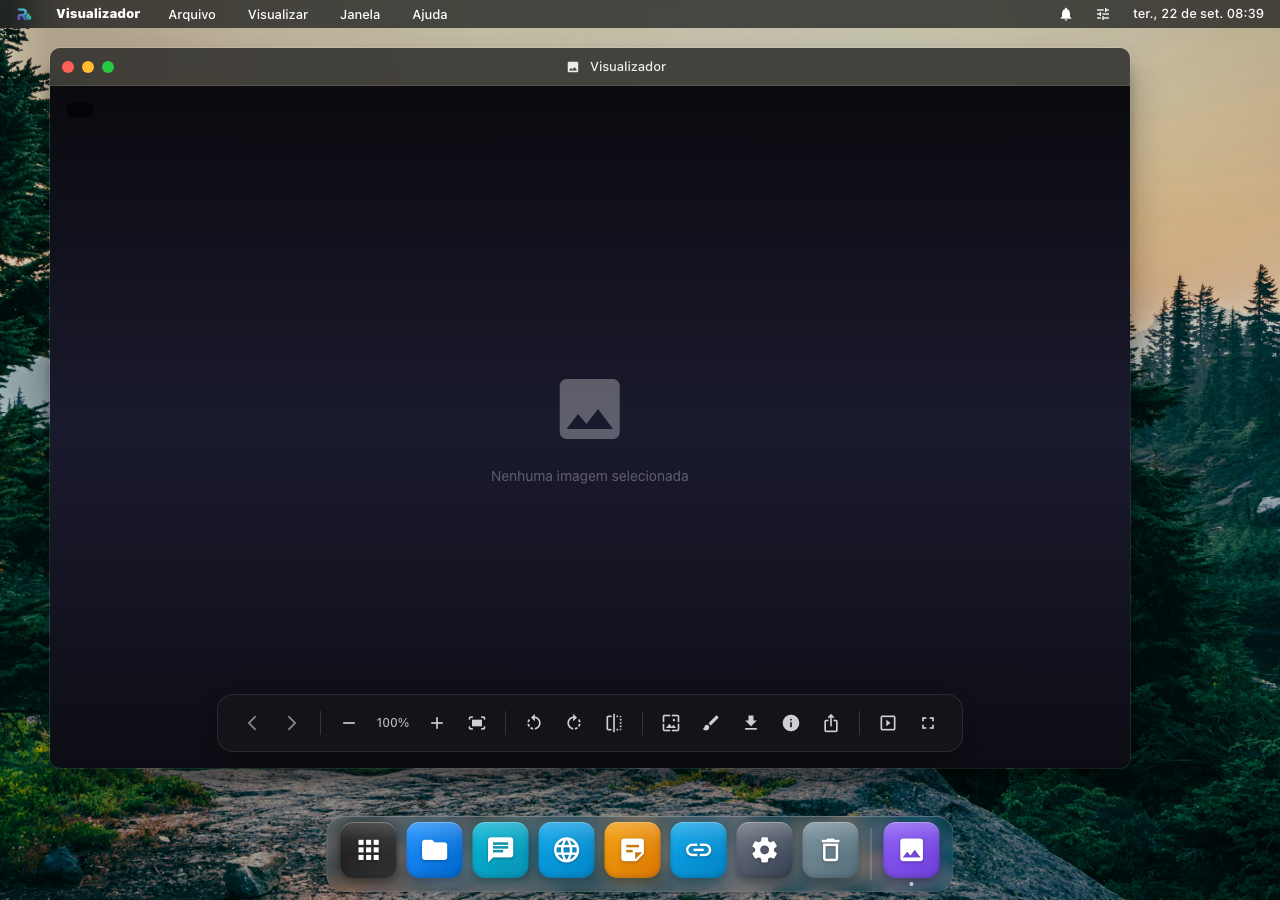
Visualizador de imagens com zoom suave, navegação por teclado e suporte a 8+ formatos. Substitui o "Visualizador de fotos do Windows" sem aquela sensação de Windows 7.
Funções
- 🔍 Zoom: scroll do mouse ou pinch (mobile). De 10% a 1000%
- ↔️ Pan: arrastar quando zoom > 100%
- ⬅️➡️ Navegação: setas do teclado pulam pra próxima imagem da pasta
- 🔄 Rotação: gira 90° por clique (ideal pra fotos do celular que vieram torcidas)
- 🖼️ Slideshow: F5 inicia apresentação com 5s/imagem
- 📋 Metadata: data, resolução, tamanho, câmera (EXIF), localização (se houver)
- 💾 Download: baixa o original ou versão redimensionada (1080p / 720p / 480p)
Formatos suportados
JPG, PNG, GIF (animado), WebP, AVIF, SVG, BMP, ICO. Sem instalar codec, tudo nativo do navegador moderno.
Integração
Abre automaticamente quando você dá duplo-clique em imagem no Finder. Funciona em pasta inteira: abre uma, ↔ navega pelas outras.
🎬 Video Player, reprodutor universal
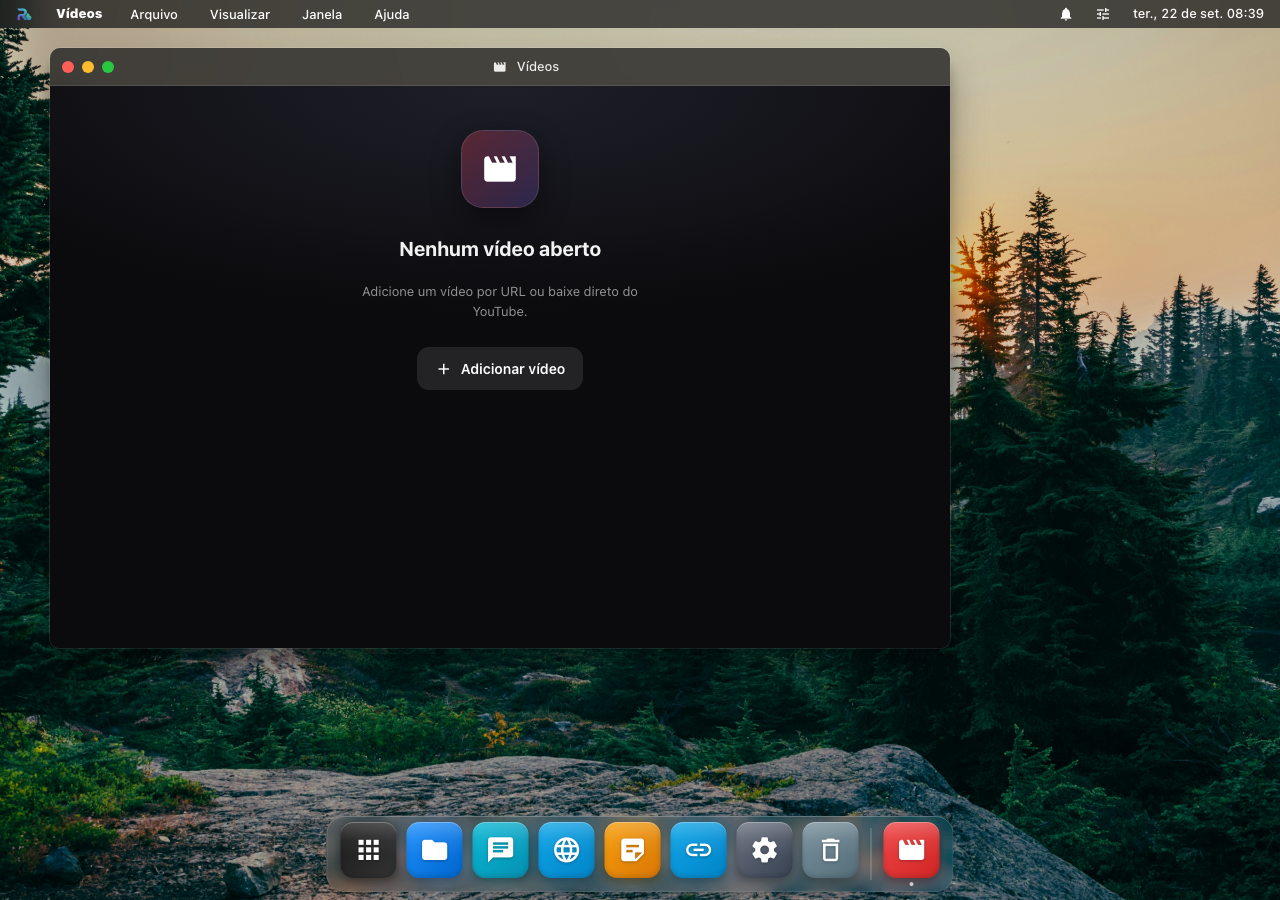
Toca seus vídeos com controles modernos: barra de progresso, miniatura preview, atalhos de teclado, picture-in-picture.
Funções
- ▶️ Playback: play/pause com
Space, sync entre múltiplas instâncias - 🎯 Seek bar: hover mostra thumbnail preview do frame
- 🔊 Volume: scroll na tela, slider ou tecla
↑/↓ - 🚀 Velocidade: 0.25× a 2.5× (sem distorção de pitch)
- 📺 Picture-in-Picture: janelinha flutuante quando você muda de aba
- 🎞️ Frame-by-frame:
,e.avançam/voltam 1 frame (debug de edição) - 📝 Legendas: arraste arquivo
.srtou.vttpra dentro pra adicionar - 🔁 Loop: repete trecho selecionado infinitamente (estudar movimento)
Formatos
Arquivos locais (Firebase/PWA) tocam nos formatos que o navegador suporta nativamente, MP4 e WebM (H.264/VP9). Hardware acceleration ativo por padrão em desktop.
Para arquivos no network storage o leque é muito maior: MP4, MKV, AVI, MOV, WMV, FLV, MPEG/MPG, M2TS/MTS, VOB, 3GP, TS e mais. O servidor detecta o codec real (inclusive HEVC/H.265 ou áudio AC3/DTS dentro de um .mp4) e, quando o navegador não dá conta, transcoda na hora, então "formato estranho que não abre em lugar nenhum" simplesmente toca.
Streaming de network storage Servidor
Conectado ao servidor com network storage (SMB/NFS/SFTP): o Video Player stream direto do NAS sem baixar. Filme de 8GB no HD da casa toca no celular em 3G sem download.
Como funciona: formatos nativos vão por streaming direto (com seek por range). Formatos que o navegador não reproduz são transcodados para HLS (H.264/AAC, segmentos de 2s) com cache no servidor, a primeira reprodução prepara, as seguintes são instantâneas. Em SFTP (onde o HLS não se aplica) o player cai automaticamente para um transcode progressivo, sem você perceber. Se um vídeo específico falhar, o erro fica contido naquele arquivo, abrir o próximo vídeo funciona normalmente.
▶️ Baixar do YouTube Servidor
Cole o link de um vídeo do YouTube e o vídeo é baixado no seu RoqueOS Server e salvo na pasta de vídeos compartilhada, depois é só assistir.
- O botão "Baixar do YouTube" aparece na playlist (barra lateral no desktop, drawer no mobile) do Video Player quando o servidor conectado tem a extração de mídia ativada (
ENABLE_MEDIA_EXTRACT=true). - O vídeo é extraído em
mp4H.264/AAC até 1080p (yt-dlp + ffmpeg no servidor), formato que toca nativo no navegador e no iPhone, sem transcode, e aparece como um vídeo normal na playlist. - Baixar o mesmo vídeo de novo reutiliza o arquivo já salvo (não baixa duas vezes).
- Opt-in: quem liga a flag no servidor assume os Termos de Uso do YouTube. Desligado por padrão.
- Se o YouTube recusar o download (acontece sobretudo quando o servidor está num datacenter), o RoqueOS explica na hora e oferece conectar uma conta ali mesmo. Nada é pedido antes disso. Ao tocar em Entrar com o YouTube, a tela de login do Google abre dentro do RoqueOS, renderizada pelo seu próprio servidor: você digita ali, resolve o captcha se aparecer, e pronto. Funciona no navegador do celular também, e a sessão fica guardada no servidor. Use uma conta descartável, porque é a sessão inteira dela que o servidor passa a ter. No servidor de demonstração compartilhado esse botão não aparece: a senha passaria por uma máquina que não é sua.
📥 Baixados Servidor
Botão "Baixados" (na tela inicial do player vazio e na playlist) abre um catálogo com todos os vídeos baixados (/shared/Videos no servidor). Toca direto dali, não precisa procurar no Finder.
Atalhos
| Tecla | Ação |
|---|---|
Space / K | Play / Pause |
J / L | -10s / +10s |
← / → | -5s / +5s |
, / . | -1 frame / +1 frame |
F | Fullscreen |
M | Mute |
0-9 | Pula pra 0%-90% do vídeo |
🎤 Audio Recorder, gravador com waveform
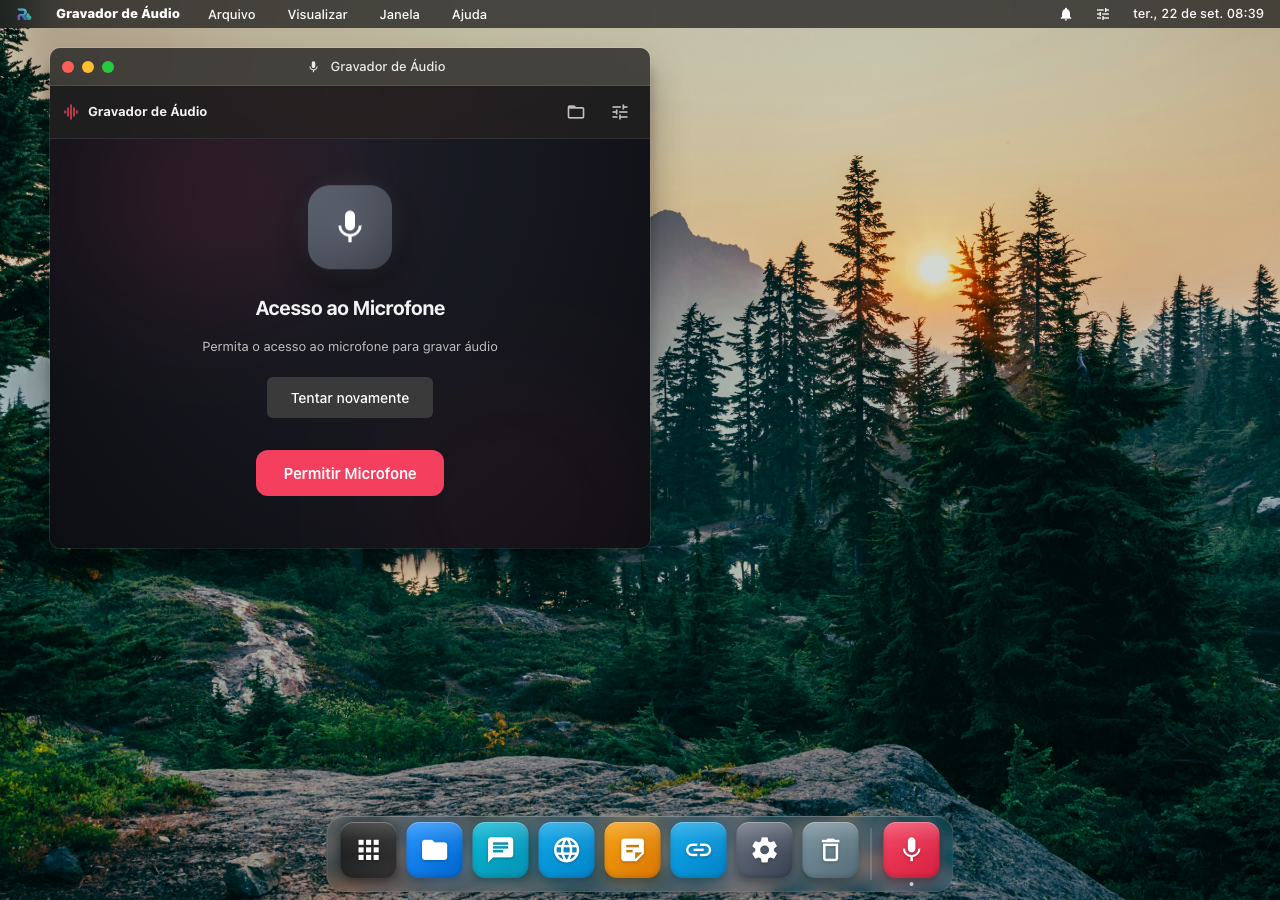
Grave áudio, voz, notas de áudio sem abrir o app nativo do telefone. Mostra waveform em tempo real pra você ver que o microfone tá pegando.
Funções
- 🔴 Gravação ao vivo com indicador visual (waveform animado)
- ⏸️ Pause + Resume numa mesma gravação (não cria 2 arquivos)
- 🎚️ Monitor de input: barra colorida verde/amarela/vermelha do nível do mic
- 💾 Formato: WebM/Opus (compressão excelente, ~1MB/min de áudio falado)
- 🏷️ Tag automática: nome
audio-2026-05-27-14-30.webm(data + hora) - 📂 Pasta automática:
/Audio/no Finder
Transcrever e trabalhar sobre o texto
Depois de parar a gravação aparece Transcrever: o áudio vai pro seu servidor, volta em texto, e o texto fica ali na tela pra copiar.
Com a transcrição pronta, o botão ✨ abre o painel de IA sobre ela: Resumir, Pontos principais, Explicar, ou uma pergunta livre ("quais foram as decisões dessa reunião?"). É a diferença entre ter uma hora de áudio guardada e ter a ata dela.
Precisa de Modo Servidor ativo. A transcrição roda no seu servidor, o áudio não sai dele.
Casos de uso
- Notas de voz rápidas durante reunião
- Podcast caseiro ou monólogo pra YouTube
- Aulas gravadas (com permissão do professor)
- Audiomemo pra lembrar de ideia que veio andando na rua
📸 Screen Capture, screenshot + screen recording
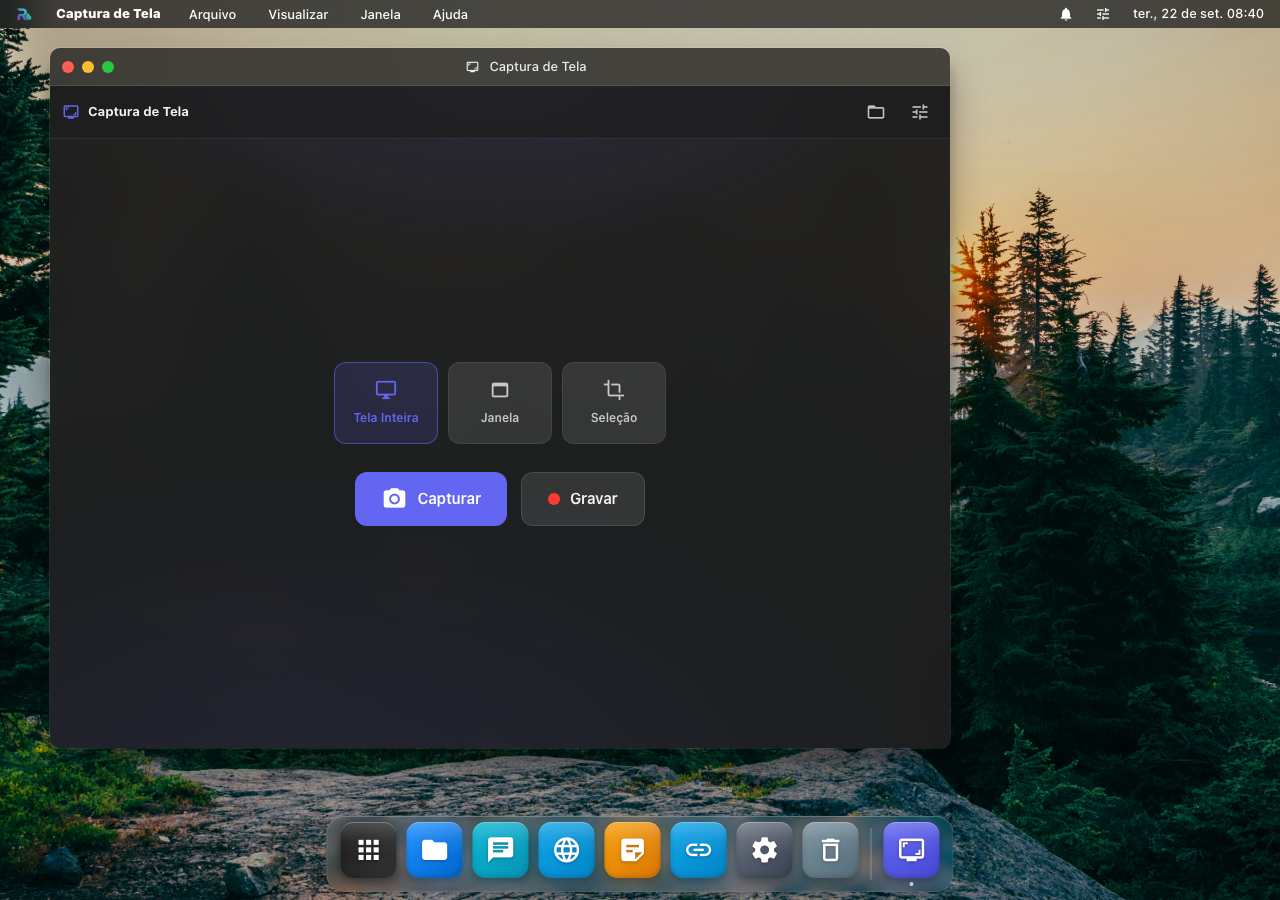
Captura tela inteira, janela específica ou aba do navegador. Pode também gravar a tela como vídeo (com áudio do sistema, opcional).
Modos
| Modo | O que captura | Bom pra |
|---|---|---|
| Tela inteira | Toda a área do monitor | Documentar erro completo |
| Janela | Apenas uma janela específica | Print de app sem distrair fundo |
| Área | Você desenha um retângulo | Detalhe específico, recortar pra Notes |
| Aba browser | Conteúdo de uma aba (sem chrome do navegador) | Documentar webapp |
Screen recording
- 🎥 Grava seleção em MP4/WebM
- 🔊 Áudio: do mic, do sistema (browser permite), ou ambos
- 🎯 Highlight click: anel ao redor do cursor quando clica
- ⏱️ Tempo máximo: 30 min por gravação (limite browser pra evitar arquivo gigante)
Workflow
- Abre Screen Capture no Launchpad
- Escolhe modo (tela / janela / área / aba)
- Browser pede permissão (mostra preview)
- Captura/grava
- Anota direto: ferramenta de marcação (setas, texto, círculo) aparece no preview ANTES de salvar
- Salva no Finder ou abre no Roque Browser pra compartilhar
Por onde o arquivo passa
Quando a câmera ou o microfone não abrem
| O que acontece | Por quê | O que fazer |
|---|---|---|
| A Câmera diz "Câmera indisponível" | outro app está com a câmera, ou não há câmera | feche quem estiver usando e toque em Tentar novamente |
| A Câmera diz "Acesso à câmera negado" | a permissão foi negada no navegador | libere nos ajustes do navegador e toque em Tentar novamente |
| O gravador fica preso em "Acesso ao Microfone" | a permissão de microfone não foi concedida | clique em Permitir Microfone e aceite no aviso do navegador |
| A Captura de Tela não lista as janelas | o navegador não suporta captura, ou o sistema bloqueia | no macOS, libere o navegador em Privacidade → Gravação de Tela |
| O vídeo abre e não toca | codec que o navegador não decodifica | converta o arquivo, ou abra em outro navegador |
A permissão só é pedida em https | câmera e microfone exigem contexto seguro | use https, ou localhost |
Integração entre os 5
Eles trabalham juntos pelo Finder. Exemplo de fluxo real:
- A Câmera grava 30s de vídeo (
Imagens/RoqueOS_Video_<hora>.webm) - Video Player abre o vídeo, você corta os 10s úteis
- Audio Recorder grava narração explicando (
Audio/explicacao.webm) - O Quadro Branco ou o Paint cria uma miniatura
- Tudo vai pro Finder, organizado por pastas
Sem aquele caos de 4 apps diferentes salvando em 4 lugares diferentes.
Veja também
- Music Player, pra arquivos de áudio salvos (MP3, FLAC, WAV)
- Music (Afinador + Drums), gerar áudio, não só reproduzir
- Roque PDF, pra documentos
- Finder, central que conecta tudo