🌐 此页面尚未翻译为中文。显示葡萄牙语(BR)参考。帮助翻译。
Remote Desktop Servidor
O Remote Desktop permite conectar-se a computadores e servidores remotos via VNC ou RDP diretamente pelo navegador, sem instalar nenhum cliente de desktop remoto. Ideal para acessar máquinas Windows, Linux com interface gráfica ou qualquer dispositivo que aceite conexões VNC/RDP.
Protocolos Suportados
VNC (Virtual Network Computing)
Protocolo multiplataforma. Funciona com Linux, macOS e Windows com servidor VNC instalado.
RDP (Remote Desktop Protocol)
Protocolo nativo do Windows. Melhor performance e integração com máquinas Windows.
Como Conectar
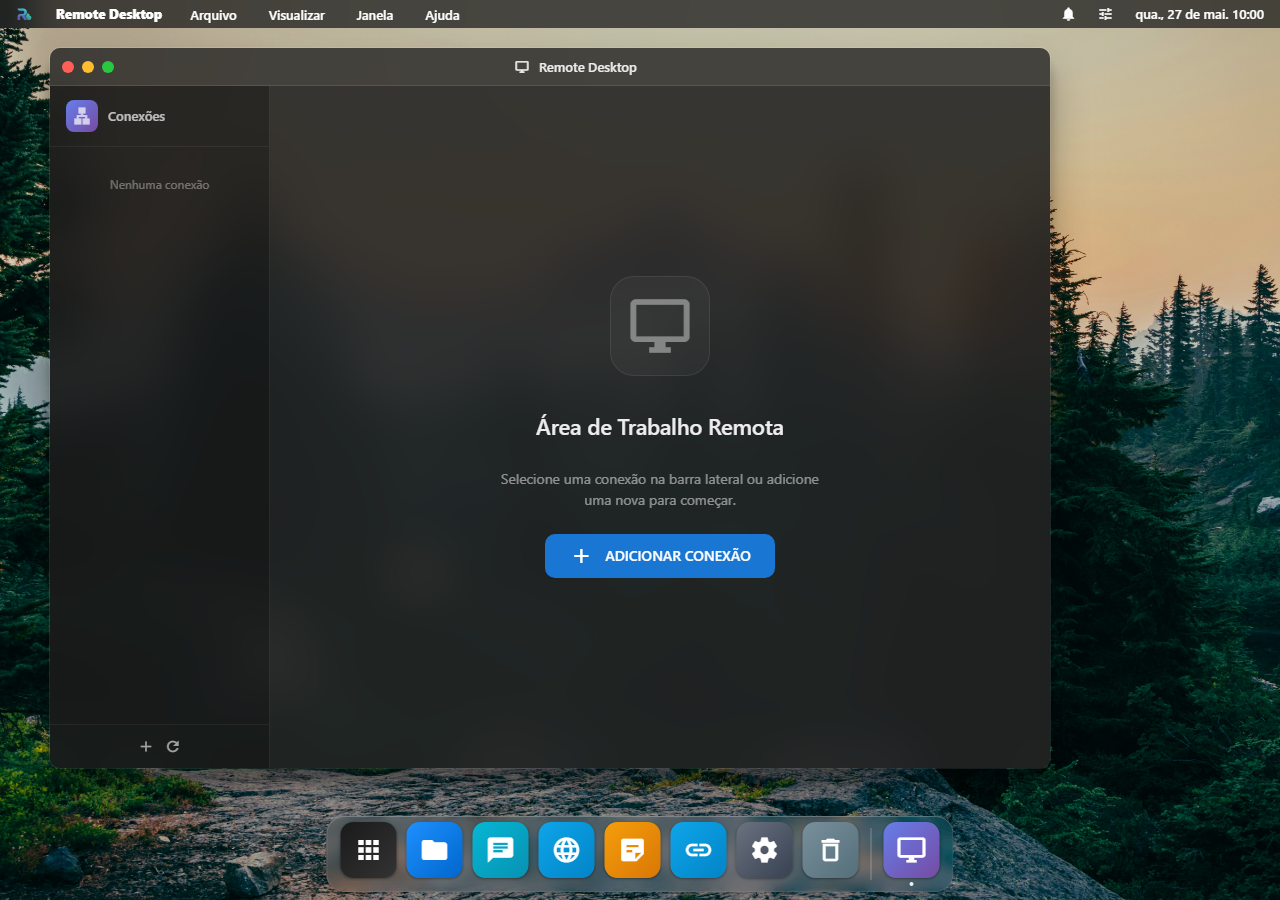
1. Abra o Remote Desktop
No Launchpad, abra o app Remote Desktop. Você verá a tela de conexões salvas.
2. Criar Nova Conexão
- Clique em + Nova Conexão
- Preencha os dados:
- Nome — Nome amigável para identificar a conexão
- Protocolo — VNC ou RDP
- Host — IP ou hostname do computador remoto
- Porta — Porta do serviço (padrão: 5900 para VNC, 3389 para RDP)
- Usuário — Nome de usuário (obrigatório para RDP)
- Senha — Senha de acesso
- Clique em Conectar
3. Usar o Desktop Remoto
Após a conexão, o desktop remoto aparece em uma janela do RoqueOS. Você pode:
- Interagir normalmente com mouse e teclado
- Redimensionar a janela para ajustar a resolução
- Tela cheia para uma experiência imersiva
- Desconectar a qualquer momento sem afetar a máquina remota
Casos de Uso
| Cenário | Descrição |
|---|---|
| Servidor Windows | Acesse um servidor Windows remoto via RDP para administração |
| Desktop Linux | Conecte ao desktop gráfico de um servidor Linux via VNC |
| Homelab | Gerencie múltiplas máquinas do seu homelab pelo RoqueOS |
| Trabalho Remoto | Acesse o computador do escritório de qualquer lugar |
Conexões Salvas
Suas conexões são salvas e ficam disponíveis para reconexão rápida. Gerencie suas conexões na tela principal do Remote Desktop:
- Reconectar — Clique em uma conexão salva para reconectar
- Editar — Modifique dados de conexão
- Remover — Delete conexões que não usa mais
Quando a conexão não fecha
| O que acontece | Por quê | O que fazer |
|---|---|---|
| "Connection refused" ao conectar | não há serviço VNC/RDP escutando naquela porta, ou o firewall bloqueia | confirme que o serviço está ligado na máquina de destino e que a porta está aberta |
| Conecta e desconecta na hora | credencial errada, ou o servidor VNC só aceita uma sessão por vez | confira usuário e senha; feche a sessão que já estava aberta |
| A tela aparece, mas o teclado erra as teclas | o layout do teclado do destino é outro | ajuste o layout na máquina remota; o RoqueOS envia a tecla, não o caractere |
| A imagem fica lenta ou borrada | VNC sem compressão em link ruim | prefira RDP quando o destino for Windows: ele comprime melhor |
| Funciona na LAN e não de fora | o RoqueOS Server alcança a máquina, mas você está pedindo pelo endereço errado | use o endereço que o servidor enxerga, não o seu |
Requisitos
REQUISITOS
- VNC: O computador remoto precisa ter um servidor VNC instalado e rodando (ex: TigerVNC, RealVNC, TightVNC)
- RDP: O computador remoto precisa ter o Remote Desktop habilitado (Windows Pro/Enterprise ou xrdp no Linux)
- Rede: O servidor RoqueOS precisa ter acesso de rede ao computador remoto (mesma rede ou VPN)
SEGURANÇA
As credenciais de conexão são armazenadas de forma segura no servidor. Evite usar conexões RDP/VNC sem criptografia em redes públicas — prefira VPN ou Cloudflare Tunnels para acesso externo.