🌐 This page is not yet translated to English. Showing Portuguese (BR) reference. Help translate this page on GitHub.
Estúdio de IA Server Mode
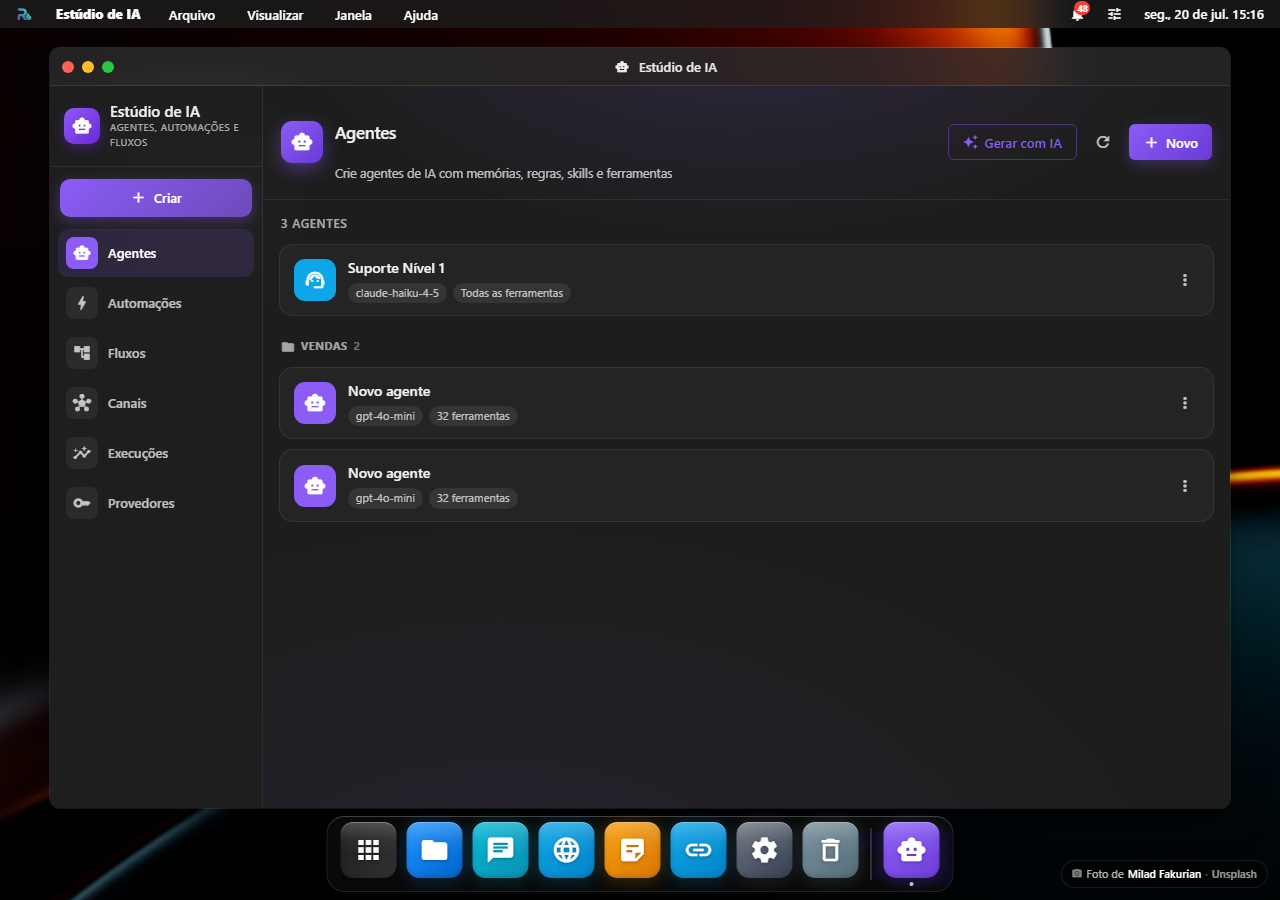
O Estúdio de IA é a casa única do RoqueOS para tudo que é IA: em vez de apps separados, você tem uma janela com uma barra lateral que reúne Agentes, Automações, Fluxos, Canais, Execuções (histórico de execuções + tokens e custo) e Provedores (chaves de IA e modelos locais).
Por que existe
Um Agente é a definição reutilizável (persona, modelo, regras, conhecimento, ferramentas). Uma Automação roda um agente sozinho num gatilho. Um Fluxo encadeia vários blocos num pipeline. Um Canal deixa alguém de fora falar com esse agente. São formas diferentes de usar a mesma coisa, então agora ficam no mesmo lugar, para você construir um agente, agendá-lo, ligá-lo num fluxo e publicá-lo num canal sem trocar de app.
Do zero ao primeiro agente rodando
- Conecte um servidor — o AI Studio inteiro depende dele (veja Requer Server Mode, no fim desta página).
- Abra o AI Studio e escolha Agentes na coluna da esquerda.
- Crie um agente: nome, modelo e as instruções que ele deve seguir.
- Teste ali mesmo, no painel de teste ao vivo, antes de usar em qualquer outro lugar.
- Use o agente onde fizer sentido: no Chat, num Canal, dentro de um Fluxo ou disparado por uma Automação.
Quando alguma coisa não responde
| O que acontece | Por quê | O que fazer |
|---|---|---|
| O app abre e diz que precisa de servidor | o AI Studio é Server Mode inteiro | conecte em Ajustes → Servidor |
| O agente responde erro no primeiro teste | falta a chave do modelo de IA no servidor | cadastre a chave no painel do servidor |
| A execução some do histórico | o histórico vive no servidor; se ele reiniciou no meio, a execução não fecha | rode de novo e acompanhe em Execuções |
| Uma ferramenta não aparece para o agente | ela não está na allow-list dele | a lista de ferramentas é por agente, e nasce vazia |
Seções
- Agentes, o registro central: defina um agente uma vez (identidade, modelo de IA, instruções, skills, conhecimento e as ferramentas que ele pode usar) e teste ao vivo.
- Automações, rode um agente num gatilho: manual, agendado, ou por webhook.
- Fluxos, monte um pipeline visual encadeando blocos de agente, HTTP, validador e saída.
- Canais, ligue um número de WhatsApp a um agente ou a um fluxo, para quem está de fora conversar com ele pelo aplicativo de mensagens.
- Execuções, o histórico unificado de tudo que rodou (ver abaixo).
- Provedores, configure suas chaves de IA (9 provedores em nuvem) e modelos locais (Ollama, LM Studio) sem sair do Estúdio. É a mesma tela de Configurações → Provedores de IA, gerencie de onde for mais fácil.
Como as quatro peças se encaixam
O agente é a peça central: as outras três só o utilizam. Por isso o caminho sempre começa criando um agente.
Execuções
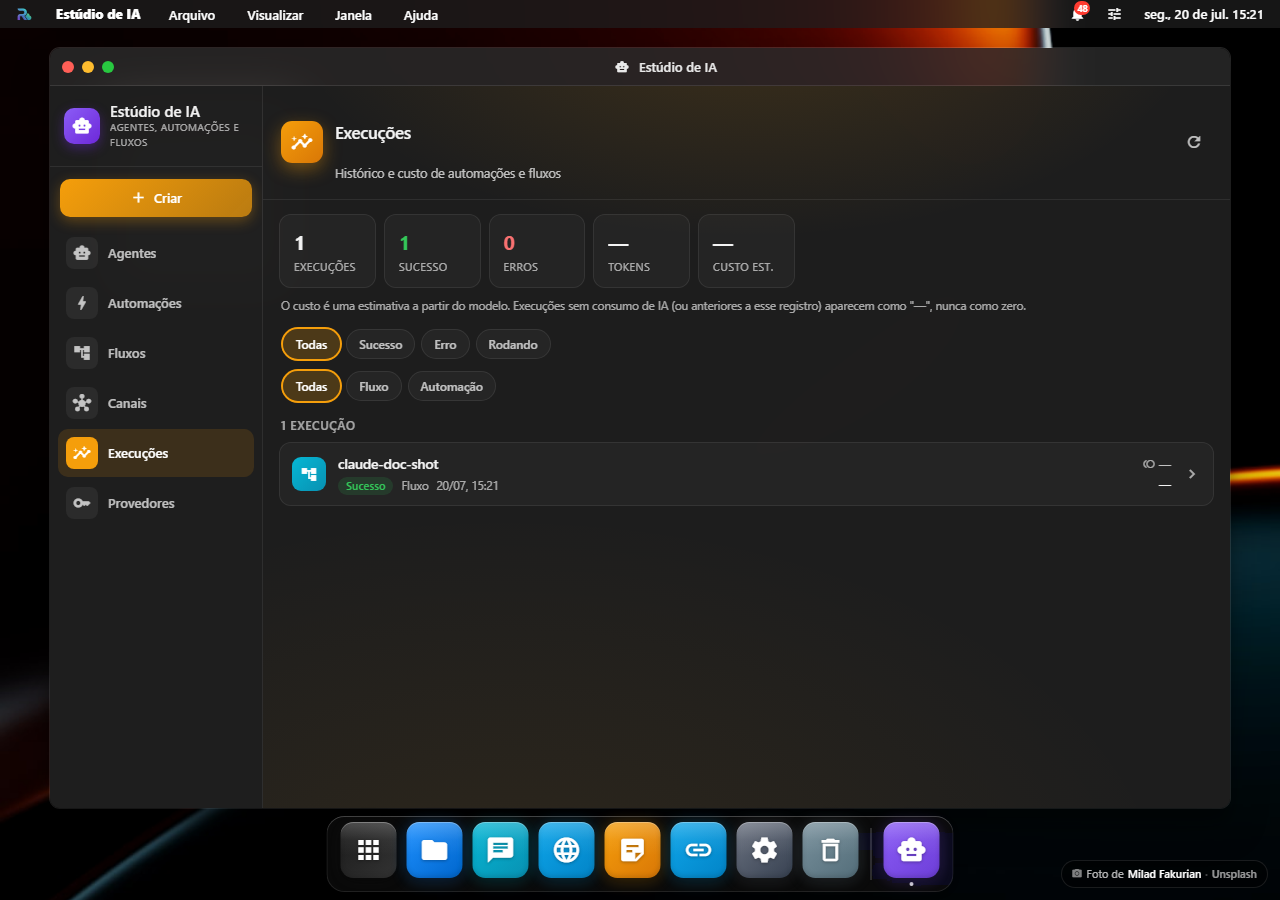
Um histórico unificado de todas as execuções de Agentes, Automações e Fluxos, com um resumo no topo (total, sucessos, erros, tokens e custo estimado).
Dá para filtrar por situação (sucesso, erro, rodando) e por tipo (agente, fluxo, automação); os dois filtros se combinam. O resumo do topo continua contando todas as execuções, então filtrar a lista não muda os números que você estava lendo.
Tocar numa execução abre o detalhe: quanto tempo levou e o que aconteceu passo a passo. Num fluxo, cada bloco aparece com o resultado que produziu, e o que falhou vem marcado em vermelho com a mensagem de erro; numa automação, que roda um agente só, aparece o texto que ela gerou. Num agente, aparece a entrada (o prompt) que ele recebeu, a resposta que produziu e as ferramentas que usou, junto do modelo e da origem (um teste no painel do agente ou uma execução disparada por outro aplicativo).
Quando uma execução não consumiu IA (um bloco HTTP, por exemplo) ou é anterior a esse registro, tokens e custo mostram um traço em vez de fingir um zero.
Criar do jeito rápido
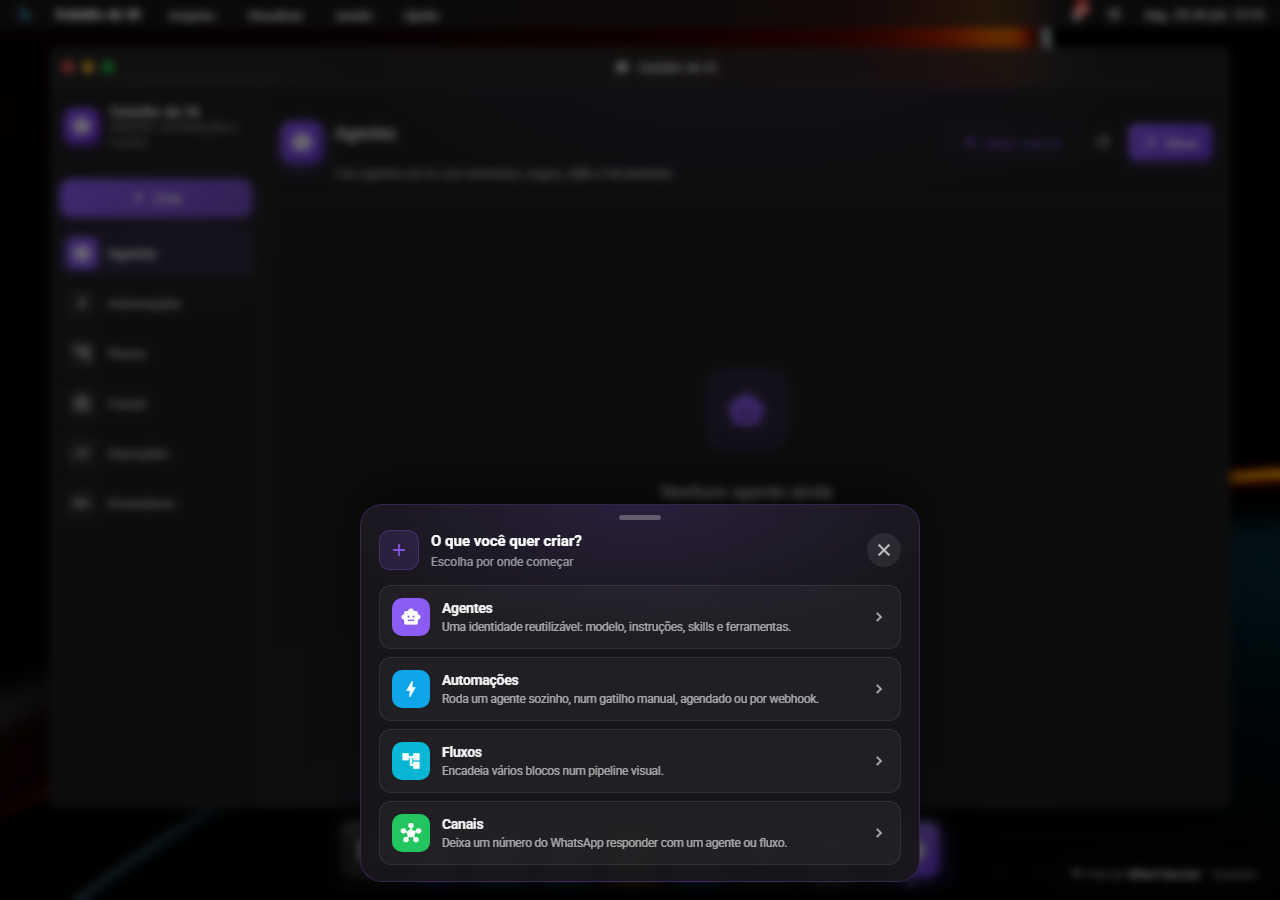
O Estúdio tem um único botão "Criar" (no topo da barra lateral, ou no ☰ do celular). Ele pergunta o que você quer construir, agente, automação, fluxo ou canal, e já te leva à seção certa com o formulário aberto. Não precisa mais navegar até a seção antes de começar.
Nas listas de Agentes, Automações e Fluxos, o menu ⋮ de cada item agora tem Duplicar: abre uma cópia pronta para você revisar e salvar. Nada é criado até você salvar, e a cópia não leva chaves de IA próprias nem a base de conhecimento do original (esses ficam com o item original).
No celular, toque no ☰ do cabeçalho para abrir a lista de seções e no ⋮ para as ações da tela (como "Gerar com IA"), assim tudo cabe numa linha só. No computador, uma barra lateral mostra as seções e as ações ficam no cabeçalho.
Nada mudou de lugar
Tudo continua funcionando pelos pontos de entrada de sempre: abrir Agentes, Automações ou Fluxos, pelo Launchpad, por uma notificação, ou pelo "rodar um agente" nas Notas, agora abre o Estúdio já na seção certa.
Requer Server Mode
Como Agentes, Automações e Fluxos rodam no seu RoqueOS Server, o Estúdio de IA precisa de um servidor conectado (ou o servidor de demonstração). Ver Agentes, Automações e Fluxos para os detalhes de cada seção.