Linux Terminal Server
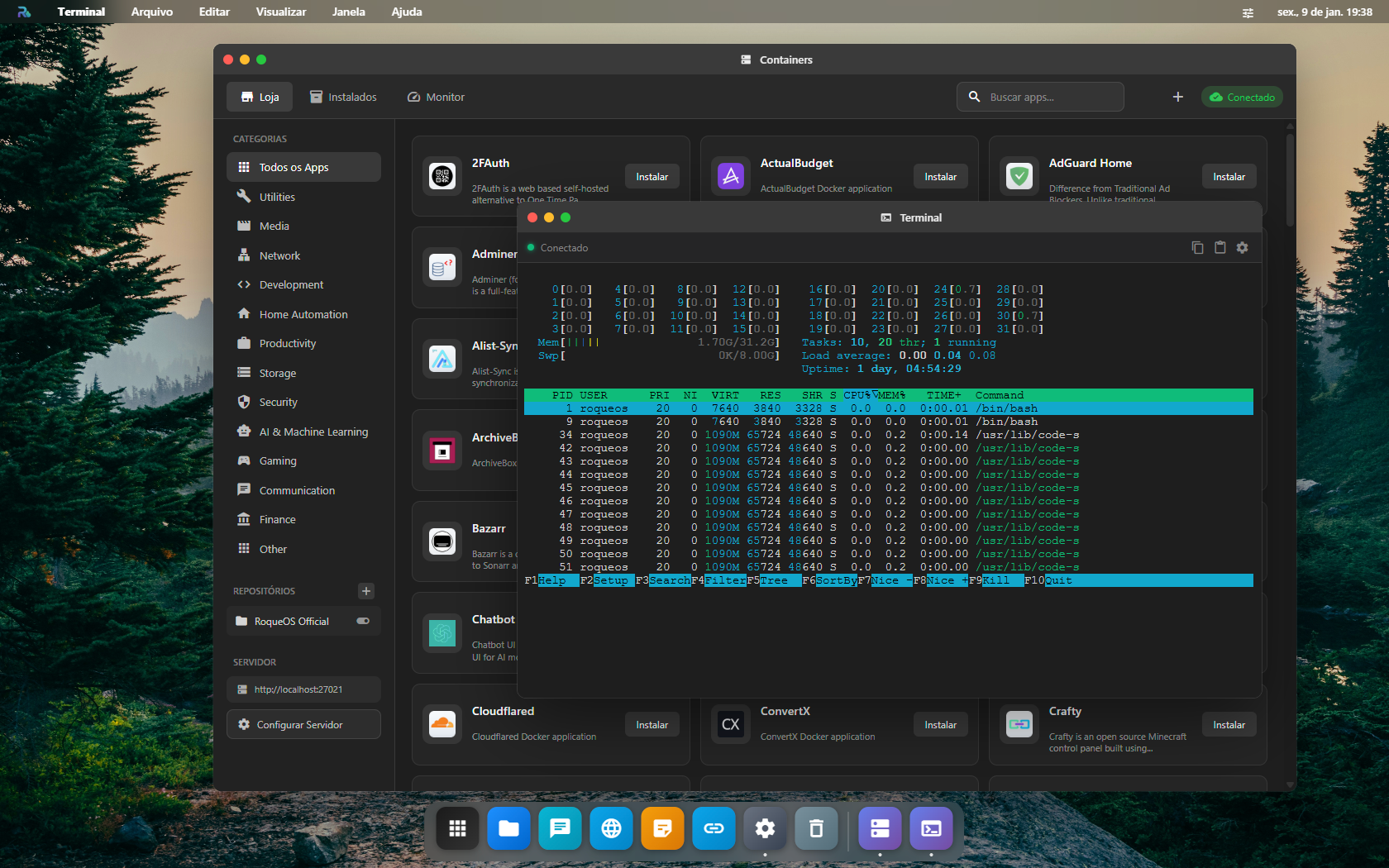
A full Ubuntu terminal right in the browser. It is not a simulation, not a WebContainer, not WSL. It is a Docker container isolated per user running Ubuntu 22.04 with bash, apt, sudo, your whole toolchain (Node, Python, Go, etc.) and roqueos-cli preinstalled so you can control the RoqueOS desktop straight from the shell.
What makes it different
- 🐧 Real Ubuntu 22.04 on the host's Linux kernel (not a simulation)
- 👤 Isolated per user: each login gets its own container, persistent home and separate processes
- 🔐 Passwordless sudo inside the container (you are root of YOUR environment, without affecting anyone else)
- 💾 Persistent home on a Docker volume, at
/data/roqueos/users/<your-id>/, surviving between sessions - 🛠️ Preinstalled packages: Node.js 22, Python 3, Go, Rust toolchain, Git, curl, wget, htop, vim, nano, jq, build-essential
- 🌐 Full network access: run an HTTP server, download files, connect to an external database
- 🤖
roqueos-clipreinstalled, which talks to the RoqueOS desktop (notifications, opening apps, creating files)
How to open it
Launchpad → Terminal. The first time takes ~5s to spin up the container (instant after that). Multiple instances are fine: open as many as you need.
Running your first command, in four steps
- Connect a server: the Terminal is its shell, not your computer's.
- Open the Terminal from the Launchpad.
- Wait for the prompt. The first time, the container takes a few seconds to start.
- Type
ls /shared: that folder is the same one Files and VS Code see.
When the terminal does not respond
| What happens | Why | What to do |
|---|---|---|
| The window opens black, with no prompt | the terminal container is still starting, or did not start | wait a few seconds; if nothing comes, check the server in Settings → Server |
command not found for a common command | the image is lean and does not ship everything | install it with the image's package manager; see Installing extra packages |
| What I installed disappeared later | the session was recreated, and only /shared and volumes persist | put what must survive inside a volume |
| Paste does not work | xterm.js captured the browser shortcut | use the shortcut listed in xterm.js shortcuts |
| The session freezes after sitting idle | the proxy dropped the idle connection | close and reopen the window; the previous session does not come back |
Real use cases
Quick maintenance script:
# Limpar /tmp de logs antigos + avisar quando terminar
find /tmp -name "*.log" -mtime +7 -delete
roqueos-cli notify "Limpeza OK" "Logs > 7 dias removidos"
New project setup:
cd ~/projects
git clone https://github.com/seu/projeto
cd projeto
yarn install
yarn dev &  # roda em background
roqueos-cli open-url "http://localhost:5173"  # abre no Roque Browser
Monitoring cron:
crontab -e
# Cole:
0 9 * * * df -h | awk '$5+0 > 80 {system("roqueos-cli notify \"Disco cheio\" \"" $6 " " $5 "\"")}'
Ad-hoc pipeline:
# Stream do log do servidor + alerta automático se "ERROR" aparecer
docker logs -f roqueos-server 2>&1 | \
  grep --line-buffered ERROR | \
  xargs -I{} roqueos-cli notify "RoqueOS error" "{}"
roqueos-cli, control the desktop from the shell
The same CLI that RoqueClaw uses. Run roqueos-cli --help in the Terminal for the full reference: it is the source of truth.
The 6 canonical actions:
roqueos-cli notify       <título> <mensagem>      # Notificação no desktop
roqueos-cli open-app     <appId>                  # Abre app (finder, vscode, browser, etc.)
roqueos-cli open-url     <url>                    # Abre URL no Roque Browser
roqueos-cli create-file  <path>                   # Cria arquivo lendo conteúdo do stdin
roqueos-cli run-terminal <comando>                # Executa comando + retorna stdout
roqueos-cli show-dialog  <mensagem> [--type X]    # Modal de confirm/alert/info
Practical examples:
# Notificação
roqueos-cli notify "Título" "Mensagem"

# Abrir app do RoqueOS
roqueos-cli open-app finder

# Abrir URL no Roque Browser
roqueos-cli open-url "https://github.com"

# Criar arquivo no Finder (lê stdin)
echo "Notas da reunião..." | roqueos-cli create-file "/home/user/notes/reuniao.md"

# Executar comando + retornar output como notification
roqueos-cli run-terminal "df -h"

# Modal de confirmação (espera resposta)
roqueos-cli show-dialog "Apagar 50GB de logs antigos?" --type confirm
The syntax uses positional arguments (not
--title/--messageflags). If your CLI version differs, update it withapt-get install --reinstall roqueos-cliinside the container.
Full documentation: RoqueClaw + CLI.
Shared filesystem
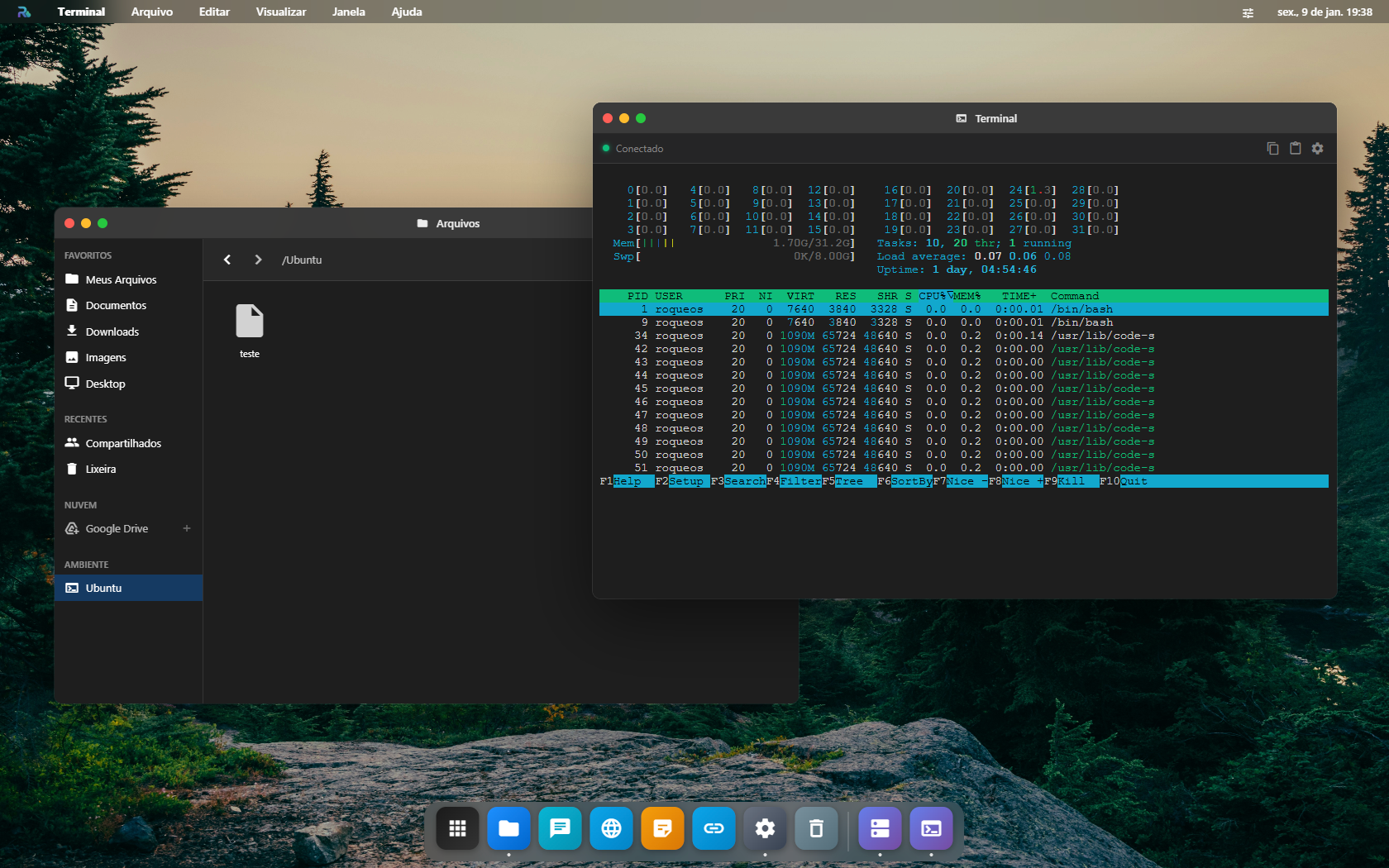
The files in the Terminal's /home/user/ are the SAME ones that show up in Finder and VS Code. Everything stays in sync:
- Save code in VS Code → it shows up in the Terminal's
ls - Create a folder in Finder →
cdworks in the Terminal wgetdownloads in the Terminal → the file shows up in Finder and in the Roque Browser
Container resources
| Resource | Default |
|---|---|
| RAM | 2 GB (configurable through the CONTAINER_MEMORY_LIMIT env var) |
| CPU | 2 shared cores |
| Disk | Dedicated Docker volume |
| Network | roqueos-network bridge (reaches the server's other containers) |
| Image | roqueribeiro1988/roqueos-server-ubuntu:latest (Ubuntu 22.04) |
Tabs
Each tab is its own shell. The tab row works with the keyboard and with the mouse.
With the keyboard, with focus on a tab (reach the row with Tab):
| Key | What it does |
|---|---|
← / → | Moves to the next tab over (from the last one, back to the first) |
Home / End | Moves to the first / the last tab |
F2 | Renames the tab: type the name and confirm with Enter (Esc cancels) |
Delete | Closes the tab |
Shift+F10 or the menu key | Opens the tab menu |
Ctrl+Shift+T / Ctrl+Shift+W | Opens a new tab / closes the current tab (from anywhere in the Terminal) |
Ctrl+Tab / Ctrl+Shift+Tab | Moves to the next / the previous tab (from anywhere in the Terminal) |
With the mouse:
| Gesture | What it does |
|---|---|
| Double-click a tab | Renames it |
| Middle-click a tab | Closes it |
| Drag a tab | Changes the order |
| Right-click a tab | Opens the tab menu |
The tab menu has Close tab, Close other tabs, Close tabs to the right, Rename tab, Duplicate tab and Close all tabs.
xterm.js shortcuts
| Shortcut | Action |
|---|---|
Ctrl+Shift+C | Copy selection |
Ctrl+Shift+V | Paste |
Ctrl+Shift++ / Ctrl+- | Increase / decrease font size |
Ctrl+Shift+F | Find in buffer |
Ctrl+L (bash) | Clear the terminal |
Ctrl+D | Log out / close the shell |
Ctrl+R | Reverse search in the bash history |
Touch input on mobile is supported natively (xterm.js detects it).
Persistence between sessions
/home/user/ (and any subfolder) persists across closing the app, container restarts and RoqueOS Server updates (install.sh --update). You only lose it if you manually delete the roqueos-userdata-<uid> Docker volume or rebuild the server from scratch (docker compose down -v).
Installing extra packages
sudo apt update
sudo apt install -y <pacote>
Packages live in your user's container; other users on the same server do not see them. Good practice: note in /home/user/.bashrc which packages you installed, so you can reinstall them if the container is ever recreated.
Compared with a local xterm / WSL
| Aspect | RoqueOS Terminal | WSL / local xterm |
|---|---|---|
| Setup | 0s (already running) | Install Linux + distro + setup |
| Access | Any logged-in browser | Only your machine |
| Multi-device | ✅ your phone reaches the same home | ❌ |
| Persistence | Server Docker volume | Local disk |
| Isolation | Per-user container | Shared |
| Performance | Server↔browser latency | Native |
Explain the output with AI
The AI button (✨) on the status bar sends what is on screen to one of your AI Studio agents and shows the answer right there.
What it reads, in this order:
- The text you selected, if there is a selection (you pointed at the part that matters).
- The end of the scrollback (last 200 lines), if there is no selection. A 40,000-line build does not fit in a prompt, and its end is what explains the failure.
Ready-made actions: Improve, Fix, Comment and Explain. The free field takes any question, for example "why did this container restart?".
The agent explains the output; it never types into your shell. Reading stays read-only, by design.
It needs Server Mode on and at least one saved agent. Without an agent, the panel takes you straight to the Agents app.
See also
- Built-in VS Code, code-server with extensions, Git, debugger
- Docker App Store, install Plex/Nextcloud/etc. in one click
- Containers Manager, manage Docker containers through the UI
- RoqueClaw + CLI, automate dev tasks in natural language