🌐 यह पृष्ठ अभी तक हिंदी में अनुवादित नहीं किया गया है। पुर्तगाली (BR) संदर्भ दिखाया जा रहा है। अनुवाद में मदद करें।
Terminal Linux Servidor
Terminal Ubuntu completo direto no navegador, não é simulação, não é WebContainer, não é WSL. É um container Docker isolado por usuário rodando Ubuntu 22.04 com bash, apt, sudo, sua toolchain inteira (Node, Python, Go, etc.) e o roqueos-cli pré-instalado pra você controlar o desktop RoqueOS direto do shell.
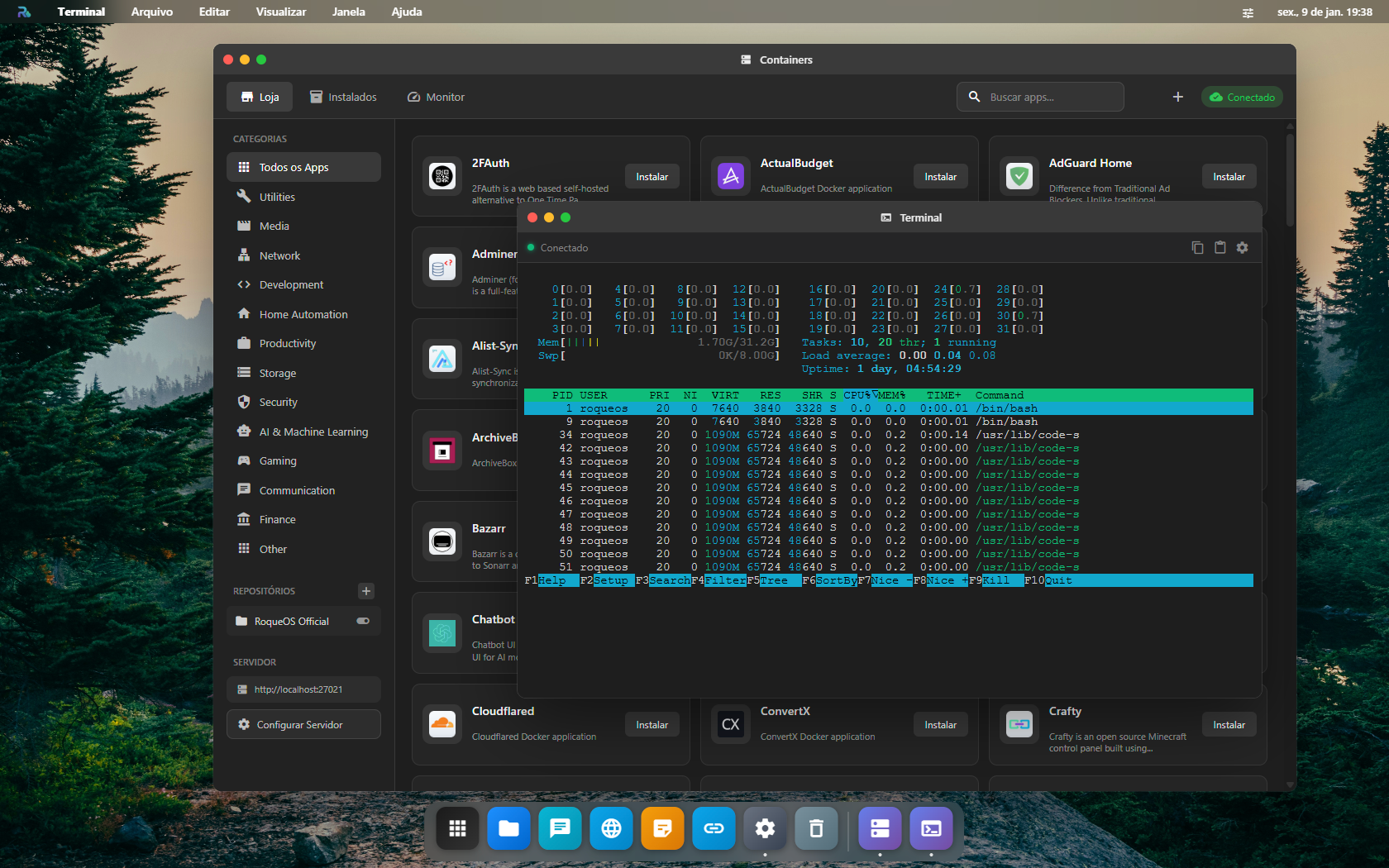
O que torna ele diferente
- 🐧 Ubuntu 22.04 real com kernel Linux do host (não simulação)
- 👤 Isolado por usuário, cada login tem container próprio, home persistente, processos separados
- 🔐 Sudo sem senha dentro do container (você é root do SEU ambiente, sem afetar outros)
- 💾 Home persistente em volume Docker, fica no
/data/roqueos/users/<seu-id>/, sobrevive entre sessions - 🛠️ Pacotes pré-instalados: Node.js 22, Python 3, Go, Rust toolchain, Git, curl, wget, htop, vim, nano, jq, build-essential
- 🌐 Acesso à rede completo, pode rodar servidor HTTP, baixar arquivo, conectar em DB externo
- 🤖
roqueos-clipré-instalado, chama o desktop RoqueOS (notifications, abrir apps, criar arquivo)
Como abrir
Launchpad → Terminal. Primeira vez leva ~5s pra spin up do container (depois é instantâneo). Múltiplas instâncias OK, abre tantas quantas precisar.
Rodando o primeiro comando, em quatro passos
- Conecte um servidor — o Terminal é o shell dele, não do seu computador.
- Abra o Terminal pelo Launchpad.
- Espere o prompt aparecer. Na primeira vez o container demora alguns segundos para subir.
- Digite
ls /shared— essa pasta é a mesma que o Arquivos e o VS Code enxergam.
Quando o terminal não responde
| O que acontece | Por quê | O que fazer |
|---|---|---|
| A janela abre preta e sem prompt | o container do terminal ainda está subindo, ou não subiu | espere alguns segundos; se não vier, confira o servidor em Ajustes → Servidor |
command not found num comando comum | a imagem é enxuta e não traz tudo | instale pelo gerenciador de pacotes da imagem; ver Instalando pacotes extras |
| O que eu instalei sumiu depois | a sessão foi recriada e só /shared e os volumes persistem | ponha o que precisa sobreviver dentro de um volume |
| Colar não funciona | o atalho do navegador foi capturado pelo xterm.js | use o atalho listado em Atalhos do xterm.js |
| A sessão trava depois de tempo parado | o proxy derrubou a conexão ociosa | feche e abra a janela; a sessão anterior não volta |
Casos de uso reais
Script rápido de manutenção:
# Limpar /tmp de logs antigos + avisar quando terminar
find /tmp -name "*.log" -mtime +7 -delete
roqueos-cli notify "Limpeza OK" "Logs > 7 dias removidos"
Setup do projeto novo:
cd ~/projects
git clone https://github.com/seu/projeto
cd projeto
yarn install
yarn dev &  # roda em background
roqueos-cli open-url "http://localhost:5173"  # abre no Roque Browser
Cron de monitoramento:
crontab -e
# Cole:
0 9 * * * df -h | awk '$5+0 > 80 {system("roqueos-cli notify \"Disco cheio\" \"" $6 " " $5 "\"")}'
Pipeline ad-hoc:
# Stream do log do servidor + alerta automático se "ERROR" aparecer
docker logs -f roqueos-server 2>&1 | \
  grep --line-buffered ERROR | \
  xargs -I{} roqueos-cli notify "RoqueOS error" "{}"
roqueos-cli, controle o desktop pelo shell
Mesmo CLI que o RoqueClaw usa. Rode roqueos-cli --help no Terminal pra ver a referência completa, é a fonte da verdade.
As 6 ações canônicas:
roqueos-cli notify       <título> <mensagem>      # Notificação no desktop
roqueos-cli open-app     <appId>                  # Abre app (finder, vscode, browser, etc.)
roqueos-cli open-url     <url>                    # Abre URL no Roque Browser
roqueos-cli create-file  <path>                   # Cria arquivo lendo conteúdo do stdin
roqueos-cli run-terminal <comando>                # Executa comando + retorna stdout
roqueos-cli show-dialog  <mensagem> [--type X]    # Modal de confirm/alert/info
Exemplos práticos:
# Notificação
roqueos-cli notify "Título" "Mensagem"

# Abrir app do RoqueOS
roqueos-cli open-app finder

# Abrir URL no Roque Browser
roqueos-cli open-url "https://github.com"

# Criar arquivo no Finder (lê stdin)
echo "Notas da reunião..." | roqueos-cli create-file "/home/user/notes/reuniao.md"

# Executar comando + retornar output como notification
roqueos-cli run-terminal "df -h"

# Modal de confirmação (espera resposta)
roqueos-cli show-dialog "Apagar 50GB de logs antigos?" --type confirm
Sintaxe usa argumentos posicionais (não flags
--title/--message). Se sua versão do CLI for diferente, atualize viaapt-get install --reinstall roqueos-clidentro do container.
Documentação completa: RoqueClaw + CLI.
Filesystem compartilhado
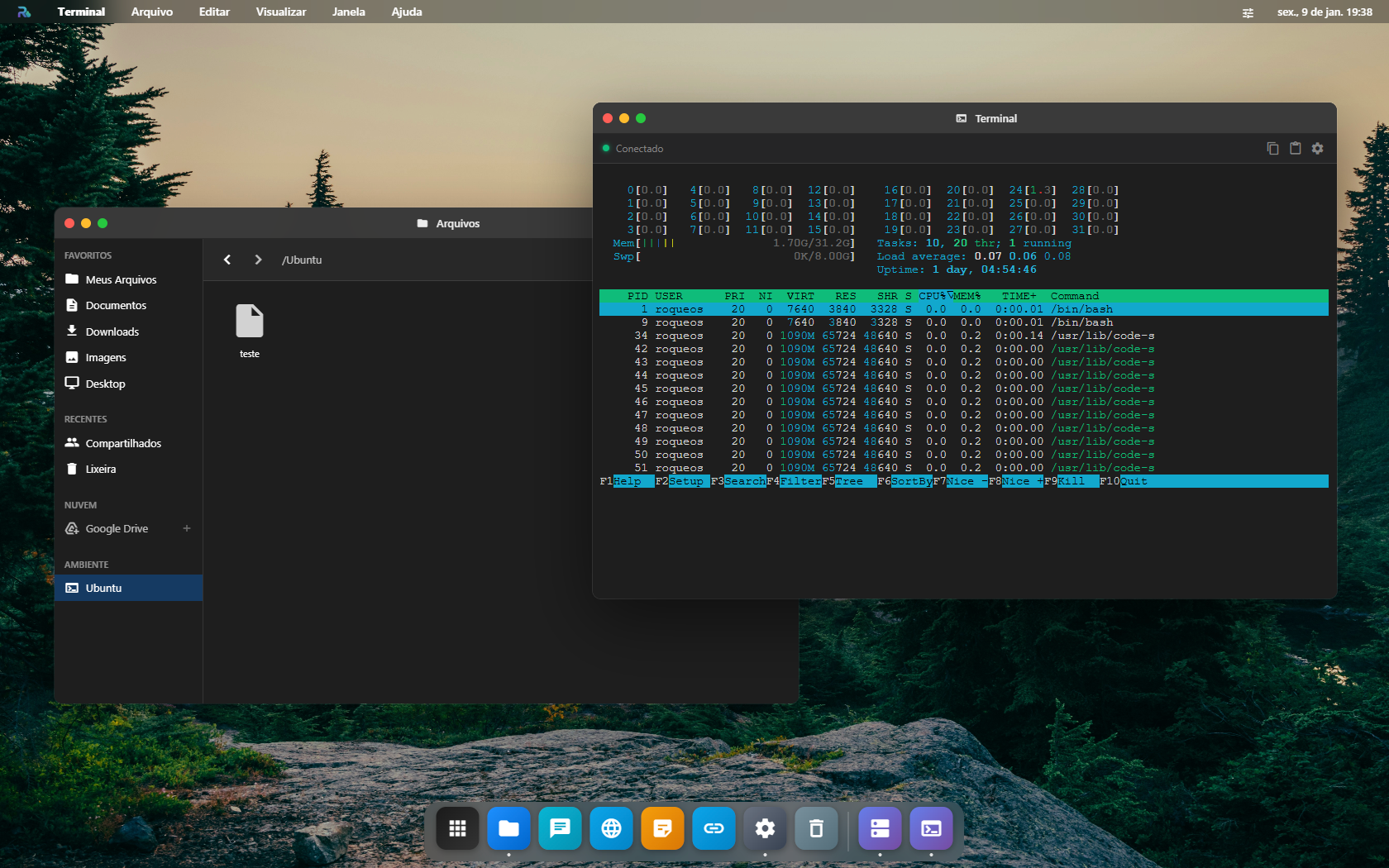
Os arquivos no /home/user/ do Terminal são os MESMOS que aparecem no Finder e no VS Code. Tudo em sincronia:
- Salva código no VS Code → aparece no
lsdo Terminal - Cria pasta no Finder →
cdfunciona no Terminal wgetbaixa no Terminal → aparece no Finder no Roque Browser
Recursos do container
| Recurso | Default |
|---|---|
| Memória RAM | 2 GB (configurável via env CONTAINER_MEMORY_LIMIT) |
| CPU | 2 cores compartilhadas |
| Disco | Volume Docker dedicado |
| Network | Bridge roqueos-network (acessa outros containers do servidor) |
| Imagem | roqueribeiro1988/roqueos-server-ubuntu:latest (Ubuntu 22.04) |
Abas
Cada aba é um shell próprio. A fileira de abas funciona pelo teclado e pelo mouse.
Pelo teclado, com o foco numa aba (chegue até a fileira com Tab):
| Tecla | O que faz |
|---|---|
← / → | Vai para a aba ao lado (da última, volta para a primeira) |
Home / End | Vai para a primeira / a última aba |
F2 | Renomeia a aba: digite o nome e confirme com Enter (Esc desiste) |
Delete | Fecha a aba |
Shift+F10 ou a tecla de menu | Abre o menu da aba |
Ctrl+Shift+T / Ctrl+Shift+W | Abre uma aba nova / fecha a aba atual (de qualquer lugar do Terminal) |
Ctrl+Tab / Ctrl+Shift+Tab | Passa para a próxima / a anterior (de qualquer lugar do Terminal) |
Pelo mouse:
| Gesto | O que faz |
|---|---|
| Clique duplo na aba | Renomeia |
| Botão do meio na aba | Fecha |
| Arrastar a aba | Muda a ordem |
| Botão direito na aba | Abre o menu da aba |
O menu da aba tem Fechar aba, Fechar outras abas, Fechar abas à direita, Renomear aba, Duplicar aba e Fechar todas as abas.
Atalhos do xterm.js
| Atalho | Ação |
|---|---|
Ctrl+Shift+C | Copiar selection |
Ctrl+Shift+V | Colar |
Ctrl+Shift++ / Ctrl+- | Aumentar / diminuir font size |
Ctrl+Shift+F | Find in buffer |
Ctrl+L (bash) | Limpar terminal |
Ctrl+D | Logout / fechar shell |
Ctrl+R | Reverse search no histórico bash |
Touch input em mobile suportado nativamente (xterm.js detecta).
Persistência entre sessions
/home/user/ (e qualquer subpasta) persistem entre fechamentos do app, restarts do container, updates do RoqueOS Server (install.sh --update). Só perde se você apagar manualmente o volume Docker roqueos-userdata-<uid> ou recriar o servidor do zero (docker compose down -v).
Instalando pacotes extras
sudo apt update
sudo apt install -y <pacote>
Os pacotes ficam no container do seu usuário, outros usuários do mesmo servidor não veem. Boa prática: anotar no /home/user/.bashrc quais pacotes você instalou pra reinstalar se algum dia o container for recriado.
Diferença vs xterm direto / WSL
| Aspecto | RoqueOS Terminal | WSL / xterm local |
|---|---|---|
| Setup | 0s (já está rodando) | Install Linux + dist + setup |
| Acesso | Qualquer browser logado | Só sua máquina |
| Multi-device | ✅ celular acessa o mesmo home | ❌ |
| Persistência | Volume Docker do servidor | Disco local |
| Isolation | Container per-user | Compartilhado |
| Performance | Latência server↔browser | Nativo |
Explicar o output com IA
O botão de IA (✨) na barra de status manda o que está na tela pra um dos seus agentes do Estúdio de IA e mostra a resposta ali mesmo.
O que ele lê, nesta ordem:
- O texto que você selecionou, se houver seleção (você apontou o pedaço que importa).
- O fim do scrollback (últimas 200 linhas), se não houver seleção. Um build de 40 mil linhas não cabe num prompt, e é o fim dele que explica a falha.
Ações prontas: Melhorar, Corrigir, Comentar e Explicar. O campo livre aceita qualquer pergunta, por exemplo "por que esse container reiniciou?".
O agente explica o output, ele nunca digita no seu shell. Leitura continua sendo só leitura, por decisão de projeto.
Precisa de Modo Servidor ativo e de pelo menos um agente salvo. Sem agente, o painel leva direto pro app de Agentes.
Veja também
- VS Code integrado, code-server com extensions, Git, debugger
- App Store Docker, instalar Plex/Nextcloud/etc com 1 clique
- Containers Manager, gerenciar containers Docker via UI
- RoqueClaw + CLI, automatize tarefas dev via linguagem natural