🌐 यह पृष्ठ अभी तक हिंदी में अनुवादित नहीं किया गया है। पुर्तगाली (BR) संदर्भ दिखाया जा रहा है। अनुवाद में मदद करें।
VS Code integrado Servidor
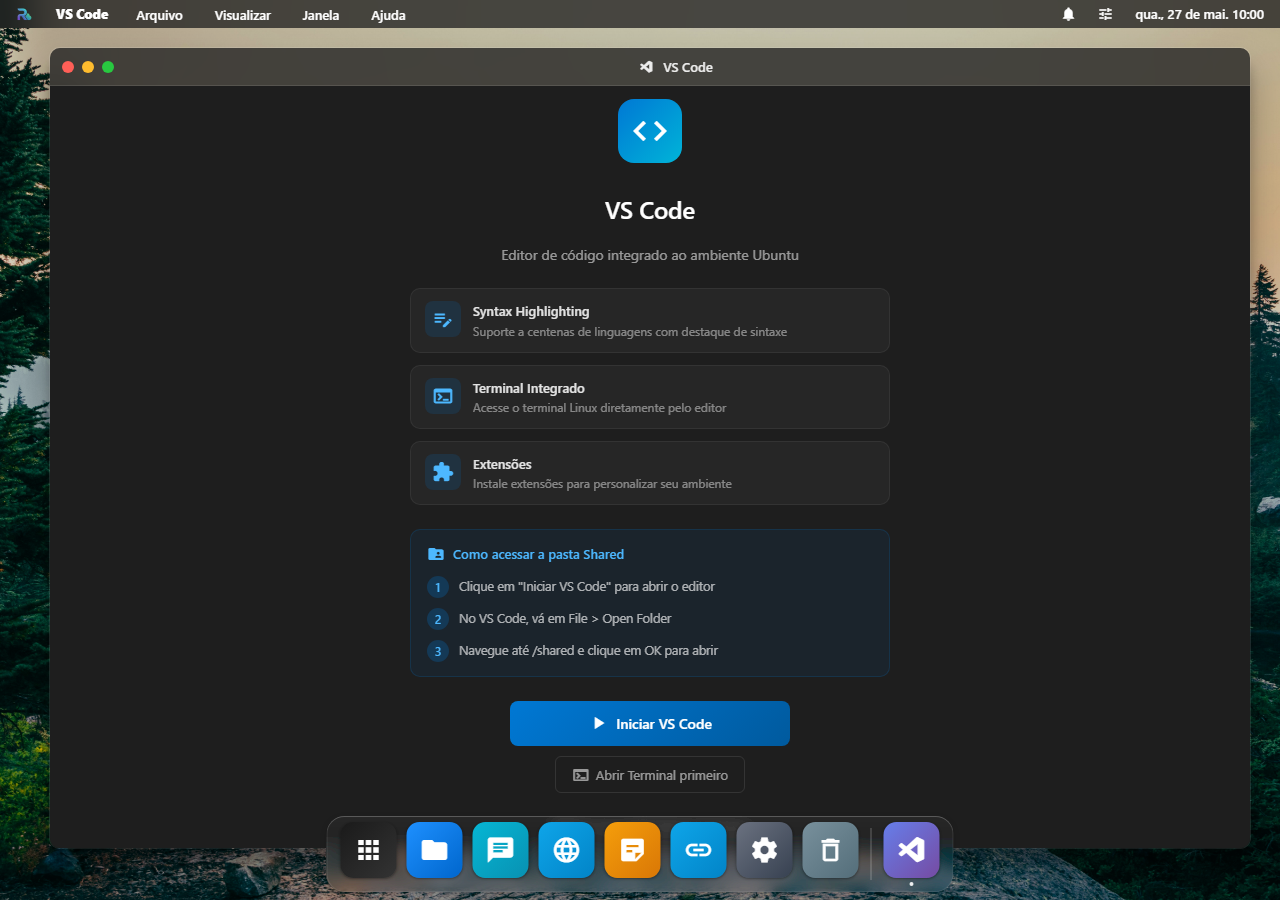
VS Code real (não fork, não clone) rodando dentro do RoqueOS via code-server. Mesma engine que você usa no desktop, mesmas extensões do marketplace, mesma config — acessível de qualquer browser logado.
Por que NÃO é só "VS Code Web"
A versão grátis web (vscode.dev, github.dev) tem limitações duras:
- ❌ Não roda extensão que precisa Node.js no servidor (Python language server, ESLint full)
- ❌ Não tem Git "real" (só GitHub.com browse-only)
- ❌ Não tem terminal embarcado
- ❌ Não roda debugger
O code-server que roda no RoqueOS Server é VS Code completo:
- ✅ Marketplace de extensões funciona (qualquer extension)
- ✅ Terminal embarcado conecta no container do servidor
- ✅ Git completo (push, pull, branch, merge, stash)
- ✅ Debugger pra Node, Python, Go, etc.
- ✅ Settings sync entre devices (porque está no SEU servidor, não no MS)
- ✅ Live preview de servidor dev (porta forward automático)
Antes de começar
O VS Code roda dentro do servidor, num container. Você precisa de um RoqueOS Server conectado; sem ele o app aparece com a etiqueta Servidor e não abre. Os arquivos que ele enxerga são os do servidor, não os do seu computador.
Abrindo a sua pasta, em quatro passos
- Conecte o servidor em Ajustes → Servidor.
- Abra o VS Code pelo Launchpad e clique em Iniciar VS Code.
- Vá em File → Open Folder quando o editor carregar.
- Navegue até
/sharede confirme — é a pasta que o Arquivos e o Terminal também enxergam.
Como abrir
Launchpad → VS Code. Primeira vez leva ~10s pra subir code-server. Depois abre instantâneo.
Filesystem compartilhado
Mesmo /home/user/ que aparece no Terminal e no Finder:
- Cria arquivo no Finder → aparece no Explorer do VS Code
- Salva código no VS Code →
git statusno Terminal mostra wgetno Terminal → arquivo aparece no Explorer
Extensões recomendadas
Marketplace funciona — mas algumas extensões fazem diferença grande no setup inicial:
Essenciais:
- GitLens — annotations git inline, blame, history
- Error Lens — erros direto na linha (sem ir pro Problems panel)
- Prettier + ESLint — formatação + lint
- Path Intellisense — autocomplete em paths de import
Linguagens (instale conforme sua stack):
- Volar — Vue 3
- Tailwind CSS IntelliSense — autocomplete de classes
- Python (Microsoft) — language server completo
- Go (Google) — Go support oficial
- rust-analyzer — Rust
- Java Extension Pack (Red Hat)
Produtividade:
- Todo Tree — agrega
// TODOem painel - Better Comments — color-coding
// !// ?// TODO - Material Icon Theme — ícones de pasta/arquivo
Git workflow
Terminal embarcado do VS Code conecta no mesmo container Ubuntu. Você pode:
git clone git@github.com:seu/repo
cd repo
git checkout -b feature/x
# ... codar ...
git add -A && git commit -m "feat: nova feature"
git push origin feature/x
SSH keys ficam em /home/user/.ssh/ (persistente). Gere uma vez, configura no GitHub, esquece.
Live preview de dev server
Rodar yarn dev no terminal embarcado → VS Code detecta a porta (3000, 5173, etc.) → prompt automático "Open in browser?". Click → abre no Roque Browser.
Sem precisar mexer em ngrok, sem precisar configurar port forwarding.
Settings sync nativo
Suas preferências (theme, keybindings, extensões instaladas, snippets) ficam no SEU servidor, no /home/user/.config/code-server/. Persiste entre updates, sobrevive a recreate de container.
Não usa o Settings Sync da Microsoft (que precisa de conta GitHub/Microsoft) — você é o dono dos seus dados.
Diferença vs Roque Code
| Aspecto | Roque Code | VS Code (code-server) |
|---|---|---|
| Onde roda | Browser (Monaco standalone) | Container Ubuntu do servidor |
| Setup | Funciona pra todo usuário | Precisa Server Mode |
| Extensions | ❌ | ✅ Marketplace completo |
| Git | ❌ | ✅ |
| Terminal | ❌ (use app Terminal) | ✅ embarcado |
| Debugger | ❌ | ✅ |
| Tamanho de arquivo | Bom até 10MB | Sem limite prático |
| Linguagens (LSP) | 50+ syntax only | 100+ com IntelliSense full |
Regra simples:
- Editar
package.jsonou snippet pequeno → Roque Code (mais rápido) - Projeto fullstack com Git → VS Code integrado
Performance
VS Code roda no container do servidor — a UI vem via WebSocket pro browser. Latência depende da latência do servidor:
- Servidor local (LAN): ~5-10ms — indistinguível de VS Code nativo
- Servidor Cloud (Hetzner DE): 180-220ms — typing tem leve atraso (~200ms entre tecla e caractere aparecer)
Pra desenvolvimento intensivo com servidor longe, considere:
- RoqueOS Server local na sua máquina (latência zero)
- App desktop do RoqueOS (mesma latência, mas com tray + atalhos OS)
Limitações
- Snippets locais salvam no servidor (precisa Server Mode pra ter snippets). Sem Server Mode, sem VS Code (use Roque Code que é browser-only).
- GUI debuggers complexos que abrem janela separada (Chromium debug, etc.) podem não funcionar full — usar debug "headless" via terminal embarcado é melhor.
- GPU acceleration indisponível dentro do container — extensões que renderizam 3D não funcionam.
Veja também
- Roque Code — editor browser-only sem Server Mode
- Terminal Linux — bash + roqueos-cli pré-instalado
- Containers Manager — gerenciar Docker via UI
- App Store Docker — instalar Plex, Nextcloud, etc.