🌐 यह पृष्ठ अभी तक हिंदी में अनुवादित नहीं किया गया है। पुर्तगाली (BR) संदर्भ दिखाया जा रहा है। अनुवाद में मदद करें।
Gerenciador de Arquivos
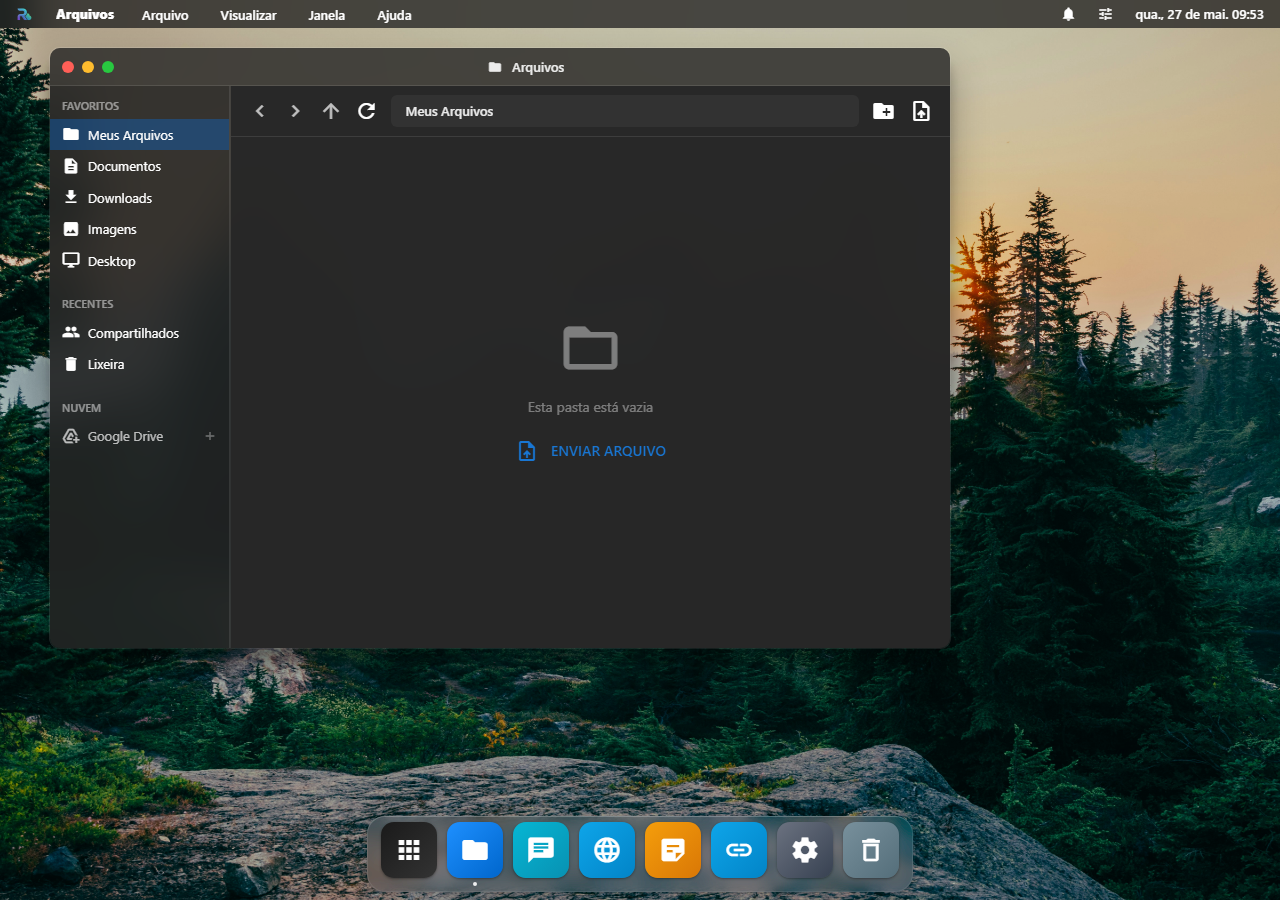
O Gerenciador de Arquivos (Finder) é o coração do sistema de arquivos do RoqueOS. Ele permite navegar, organizar e gerenciar seus arquivos em múltiplas fontes de armazenamento, desde o armazenamento local em nuvem (Firebase) até discos físicos do seu servidor mapeados via Docker.
Fontes de Armazenamento
O Finder trabalha com quatro tipos de armazenamento, dependendo da sua configuração:
☁️ Armazenamento em Nuvem (Padrão)
Disponível para todos os usuários, sem necessidade de servidor. Seus arquivos ficam salvos de forma segura no Firebase Storage, vinculados à sua conta.
- Capacidade: Definida pela sua cota de armazenamento
- Sincronização: Automática entre todos os dispositivos logados
- Acesso: De qualquer lugar com internet
📁 Google Drive
Conecte a sua Conta do Google e os arquivos do seu Drive aparecem no Finder, ao lado das outras fontes, para navegar, abrir e baixar sem sair do RoqueOS.
- A conexão pertence à sua conta, não ao navegador: conecte uma vez e ela vale em qualquer aparelho onde você entrar.
- Outros apps seus reusam a mesma conexão, como a Cadentia, em vez de pedir um login do Google separado.
- Para encerrar, use Desconectar no próprio RoqueOS, que apaga a conexão guardada. Revogar o acesso direto na sua Conta do Google também funciona: o RoqueOS percebe e pede reconexão em vez de falhar em silêncio.
💾 Discos do Servidor Servidor
Ao conectar um RoqueOS Server, você pode mapear pastas reais do seu computador ou servidor host para dentro do Finder. Elas aparecem como discos virtuais no painel lateral esquerdo.
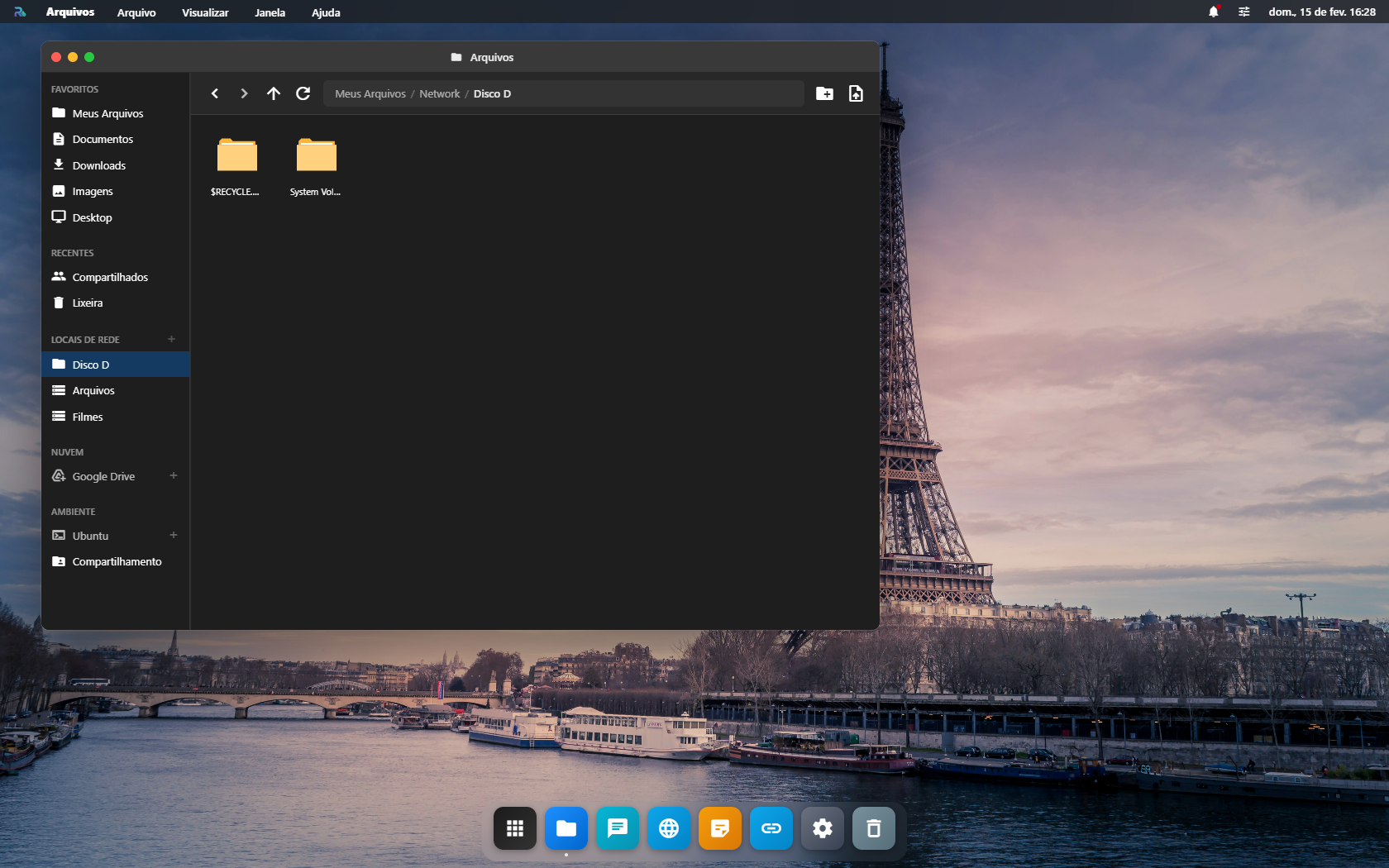
Para configurar discos, veja o guia de Volumes (Discos).
🌐 Armazenamento de Rede (SMB/NFS) Servidor
Acesse compartilhamentos de rede da sua rede local (NAS, Samba shares, NFS) diretamente no Finder. Ideal para acessar HDs de rede, NAS Synology/QNAP e pastas compartilhadas do Windows.
Antes de começar
O Arquivos abre sempre, mas o que ele enxerga depende de onde as coisas estão: Meus Arquivos e as pastas da conta funcionam só com login; discos do servidor, /shared e o Google Drive precisam, cada um, de servidor conectado ou de conta vinculada.
Quando o arquivo não aparece
| O que acontece | Por quê | O que fazer |
|---|---|---|
| A pasta abre vazia e você sabe que tem arquivo | está olhando a pasta da conta, e o arquivo está no servidor (ou o contrário) | confira em qual fonte você está, na coluna da esquerda |
| Os discos do servidor não aparecem em LOCAIS DE REDE | não há servidor conectado, ou o disco não está mapeado no docker-compose.yml | ver Volumes e discos |
| O upload falha no meio | arquivo maior que o limite do servidor, ou disco cheio | confira o espaço no servidor; arquivos grandes vão melhor por /shared |
| O Google Drive pede login toda vez | o token expirou, ou o navegador bloqueia cookies de terceiros | vincule de novo em Ajustes; libere cookies para o domínio do Google |
| Apaguei no Ubuntu e não está na Lixeira | no Ubuntu não há Lixeira: o Finder avisa antes que apagar ali é de vez | confira duas vezes antes de confirmar |
Navegação
Painel Lateral
O painel esquerdo mostra todas as suas fontes de armazenamento:
- Armazenamento, Pasta raiz do armazenamento em nuvem
- Discos, Volumes mapeados do servidor (ex:
Filmes,Downloads,Projetos) - Rede, Compartilhamentos de rede conectados
Barra de Caminho
No topo da janela, a barra de caminho (breadcrumb) mostra onde você está e permite navegar rapidamente para pastas pai.
Modos de Visualização
Alterne entre dois modos de visualização:
- 📋 Lista, Visualização detalhada com nome, tamanho, tipo e data de modificação
- 📦 Grade, Visualização com ícones grandes e previews de imagens
Menu de Contexto
Clique com o botão direito (ou toque longo no celular) em qualquer arquivo ou pasta para acessar o menu de contexto completo:
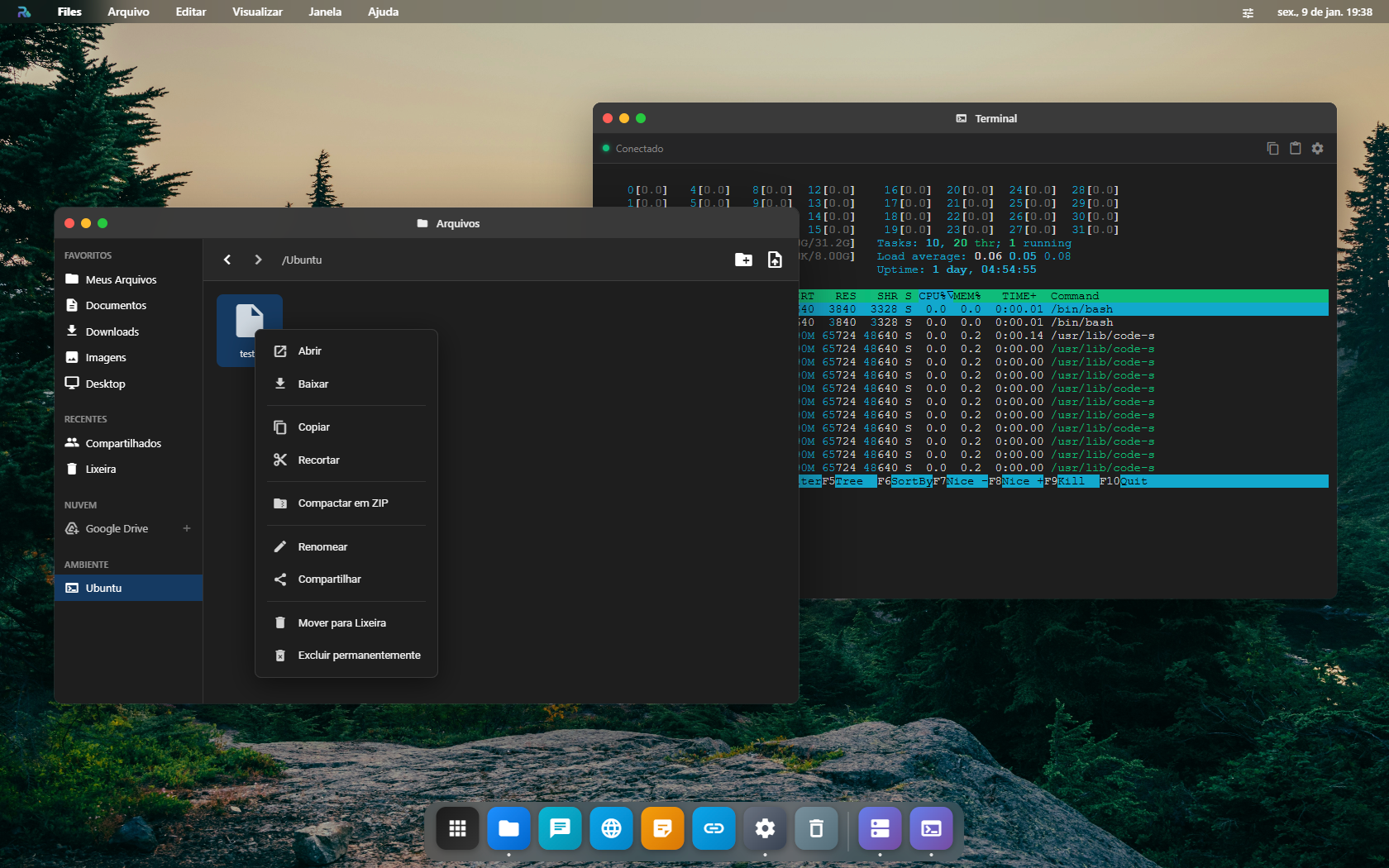
Ações Disponíveis
| Ação | Descrição |
|---|---|
| Abrir | Abre o arquivo com o aplicativo adequado |
| Abrir com... | Escolha qual aplicativo usar para abrir o arquivo |
| Renomear | Altere o nome do arquivo ou pasta |
| Copiar | Copie para a área de transferência |
| Mover | Mova para outra localização |
| Lixeira | Guarda o item na Lixeira, de onde ele volta |
| Download | Baixe o arquivo para o seu dispositivo |
| Compactar | Crie um arquivo ZIP com os itens selecionados |
| Informações | Veja detalhes como tamanho, tipo e datas |
Lixeira
Mover para a Lixeira não apaga. O item sai da pasta e fica guardado até você decidir o que fazer com ele:
- Restaurar devolve o item à pasta de onde ele saiu. Se outro arquivo ocupou o nome nesse meio tempo, o que volta ganha um número, como
foto (2).jpg, e nenhum dos dois some. - Apagar de vez e Esvaziar Lixeira são os únicos caminhos que apagam o arquivo.
Onde cada item fica guardado depende de onde ele estava:
| Onde o item estava | O que a Lixeira faz |
|---|---|
| Meus Arquivos (nuvem) | o arquivo continua na nuvem, marcado como jogado fora, e conta na sua cota até esvaziar |
Disco do servidor (/shared) | vai para a pasta escondida .lixeira-roqueos, na raiz do /shared |
| Armazenamento de rede | vai para a pasta escondida .lixeira-roqueos, na raiz do disco de rede |
| Google Drive | vai para a Lixeira do próprio Drive; restaurar pelo RoqueOS ou pelo Drive dá no mesmo |
| Área de Trabalho | o atalho sai da mesa e volta para o mesmo lugar ao restaurar |
| Ubuntu | não há Lixeira: o menu mostra Apagar de vez e o Finder pede confirmação |
Um arquivo da nuvem que foi para a Lixeira antes de setembro de 2026 não pode ser restaurado: naquela época mover para a Lixeira já apagava o arquivo e guardava só o nome. O Finder avisa quando for o caso, e Apagar de vez tira a entrada.
Upload de Arquivos
Existem várias formas de enviar arquivos para o Finder:
Arrastar e Soltar (Drag & Drop)
Arraste arquivos do seu computador diretamente para a janela do Finder. Uma zona de drop aparecerá indicando onde o arquivo será salvo.
Botão de Upload
Clique no botão ⬆️ Upload na barra de ferramentas para selecionar arquivos do seu dispositivo.
Criar Nova Pasta
Clique no botão 📁+ ou use o menu de contexto para criar novas pastas e organizar seus arquivos.
▶️ Baixar do YouTube na pasta atual Servidor
Dentro de uma pasta do disco do servidor (/shared/...) ou de um armazenamento de rede (NAS), aparece o botão "Baixar do YouTube" na barra de ferramentas. Cole o link, escolha áudio (MP3) ou vídeo (MP4), e o arquivo é baixado no servidor direto na pasta onde você está, a listagem atualiza sozinha.
- Só aparece quando o servidor conectado tem a extração de mídia ativada (
ENABLE_MEDIA_EXTRACT=true) e a pasta é do servidor/NAS (não funciona em Nuvem/Google Drive, o download roda no servidor). - Opt-in: quem liga a flag assume os Termos de Uso do YouTube.
- Se o YouTube recusar o download (acontece sobretudo quando o servidor está num datacenter), o RoqueOS explica na hora e oferece conectar uma conta ali mesmo. Nada é pedido antes disso. Ao tocar em Entrar com o YouTube, a tela de login do Google abre dentro do RoqueOS, renderizada pelo seu próprio servidor: você digita ali, resolve o captcha se aparecer, e pronto. Funciona no navegador do celular também, e a sessão fica guardada no servidor. Use uma conta descartável, porque é a sessão inteira dela que o servidor passa a ter. No servidor de demonstração compartilhado esse botão não aparece: a senha passaria por uma máquina que não é sua.
Compartilhamento de arquivos
O Finder tem 2 modos de compartilhar:
🤝 P2P com outro usuário do RoqueOS
Pra mandar arquivo pra um amigo que tem conta:
- Right-click no arquivo → Compartilhar
- Modal abre, busca por nome/email do amigo
- Click "Enviar", arquivo aparece pro amigo em Compartilhados no Finder dele
- Você pode revogar a qualquer momento
Não duplica o arquivo (só dá permissão de leitura). Se você apagar, some pro amigo também.
🌐 Link público com qualquer um
Pra mandar pra alguém SEM conta RoqueOS (cliente, fornecedor, etc.):
- Right-click → Obter link compartilhável
- Escolhe expiração: 1 dia / 7 dias / 30 dias / nunca
- Click "Gerar", URL tipo
https://roqueos.com.br/s/abc123é copiada - Mande por email/WhatsApp, destinatário abre direto no navegador, sem login
Funciona pra qualquer tipo:
- 🖼️ Imagem: preview inline no link
- 🎬 Vídeo: player nativo no link
- 🎵 Áudio: player nativo
- 📄 PDF: viewer inline
- 📁 Pasta: navegação completa (snapshot da árvore no momento da criação)
Aba "Compartilhados" no Finder
Pasta especial Compartilhados sempre visível na sidebar:
- 📥 Recebidos: arquivos que outros compartilharam com você (P2P)
- 🔗 Meus links: lista todos os links públicos que você gerou, copia URL, vê quantos cliques, revoga
Stats de uso dos links
Cada link mostra:
- 👁️ Views (visitas únicas)
- ⬇️ Downloads (downloads efetivos)
- 🕰️ Último acesso (timestamp)
Dedup por sessionStorage no navegador do visitante, abrir o link 10x no mesmo browser conta como 1 view.
Integração com Outros Apps
O Finder identifica automaticamente o tipo de cada arquivo e abre com o aplicativo correto:
| Tipo de Arquivo | App que Abre |
|---|---|
.jpg, .png, .gif, .webp, .svg | Image Viewer |
.mp3, .wav, .ogg, .flac | Music Player |
.mp4, .webm, .mkv | Video Player |
.pdf | Roque PDF |
.txt, .log, .csv | Text Editor |
.js, .py, .html, .css, .json | Roque Code |
Perguntar sobre a pasta com IA Servidor
O botão ✨ na barra de ferramentas manda a listagem da pasta em que você está (nome, tipo, tamanho e data de cada item) pra um dos seus agentes do Estúdio de IA. Ações prontas: Resumir, Pontos principais e Explicar; o campo livre responde coisas como "o que aqui dá pra apagar?" ou "quais desses arquivos são de 2024?".
Ele lê só o que está na tela: nomes e metadados, nunca o conteúdo dos arquivos, e nunca as URLs de download (um link assinado é uma credencial, não é informação útil pro modelo). Pasta vazia não vira pergunta.
A resposta das perguntas fica no painel, com botão de copiar.
Organizar e limpar com IA Servidor
Em Meus Arquivos, no disco do servidor (/shared) e num armazenamento de rede, os botões Organizar esta pasta e Limpar esta pasta do mesmo painel fazem o trabalho, em vez de só sugerir:
- O agente devolve um plano: pastas a criar, arquivos a mover ou renomear e o que mandar para a Lixeira. Limpar só manda para a Lixeira.
- O Finder descarta o que não bate com a pasta (nome que não existe, destino inventado, nome com barra) e mostra o plano, com a contagem do que vai mudar, antes de mexer em qualquer arquivo.
- Você confere e aperta Aplicar. Se alguma ação não der certo, as outras seguem e a tela diz qual falhou.
- Desfazer volta tudo: o que foi movido volta, o nome antigo volta, o que foi para a Lixeira é restaurado, e a pasta que o plano criou sai, se continuar vazia.
A IA nunca apaga de vez: o pior que ela faz é mandar para a Lixeira, de onde o item volta. No Ubuntu, no Google Drive, na Área de Trabalho e nas pastas especiais os dois botões continuam só sugerindo em texto.
Integração com VS Code Servidor
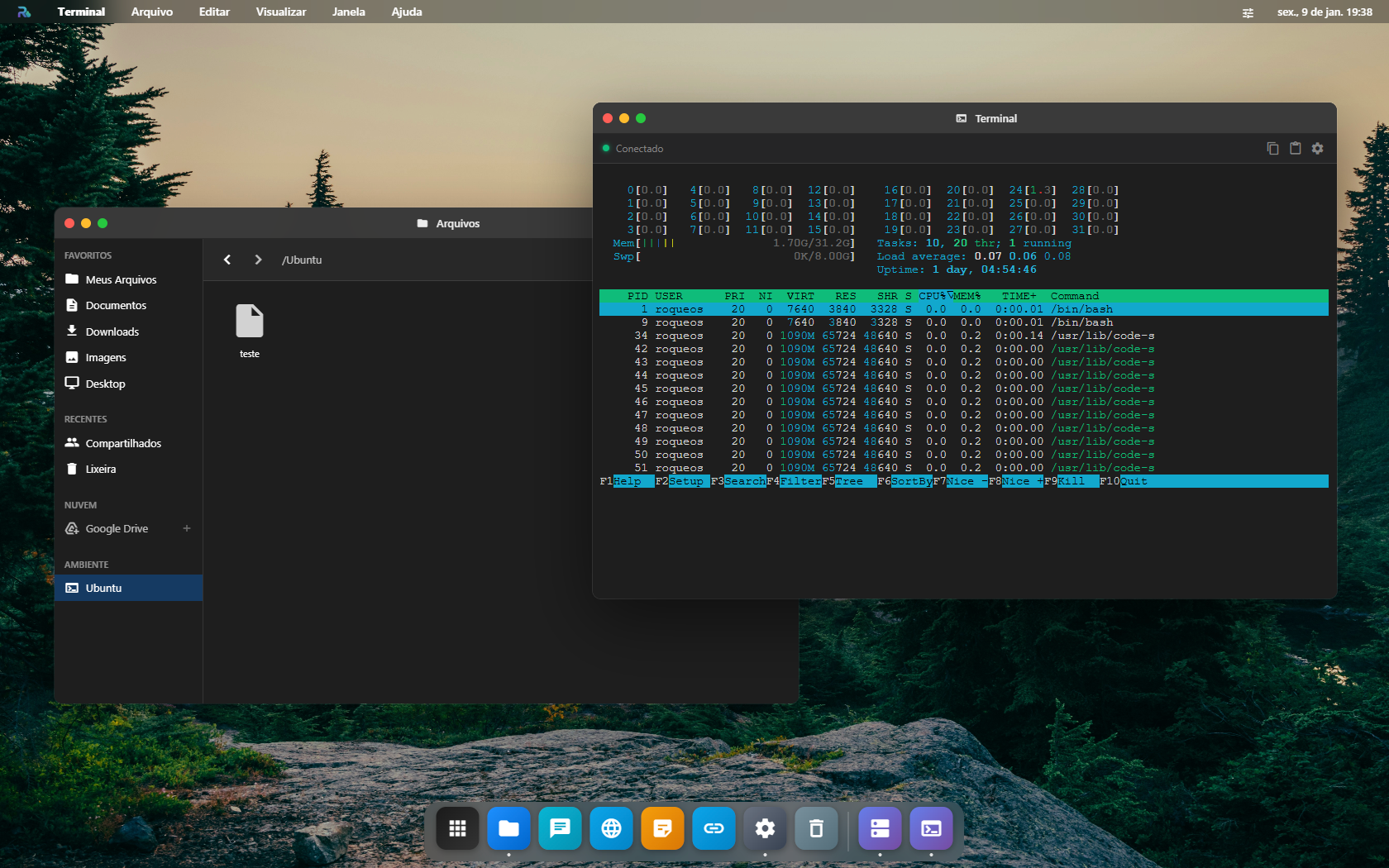
Quando conectado ao servidor, os mesmos arquivos que você vê no Finder também estão acessíveis no VS Code integrado. Isso significa que você pode:
- Navegar e organizar arquivos no Finder
- Abrir e editar código no VS Code
- Ambos trabalham sobre o mesmo filesystem do container Ubuntu
Funcionalidades no Celular
No mobile, o Finder se adapta com:
- Toque longo para abrir o menu de contexto (substitui o clique direito)
- Layout responsivo que se ajusta à tela do dispositivo
- Gestos de navegação, deslize para voltar à pasta anterior
- Seleção múltipla, toque e segure para selecionar vários arquivos
Dicas & Atalhos
DICAS RÁPIDAS
- Duplo clique em uma pasta para entrar nela
- Duplo clique em um arquivo para abrir com o app padrão
- Use a barra de busca para encontrar arquivos rapidamente
- Arraste arquivos entre pastas para movê-los
- Selecione múltiplos arquivos segurando
Ctrl(ouCmdno Mac)