🌐 This page is not yet translated to English. Showing Portuguese (BR) reference. Help translate this page on GitHub.
App Store Docker
A App Store do RoqueOS permite instalar e gerenciar dezenas de aplicações Docker populares com apenas um clique, diretamente do seu web desktop — sem precisar escrever nenhum comando.
Como Funciona?
A App Store é uma interface visual para o Docker rodando no seu servidor. Cada aplicativo do catálogo é um container pré-configurado que o RoqueOS sabe como baixar, configurar e iniciar automaticamente.
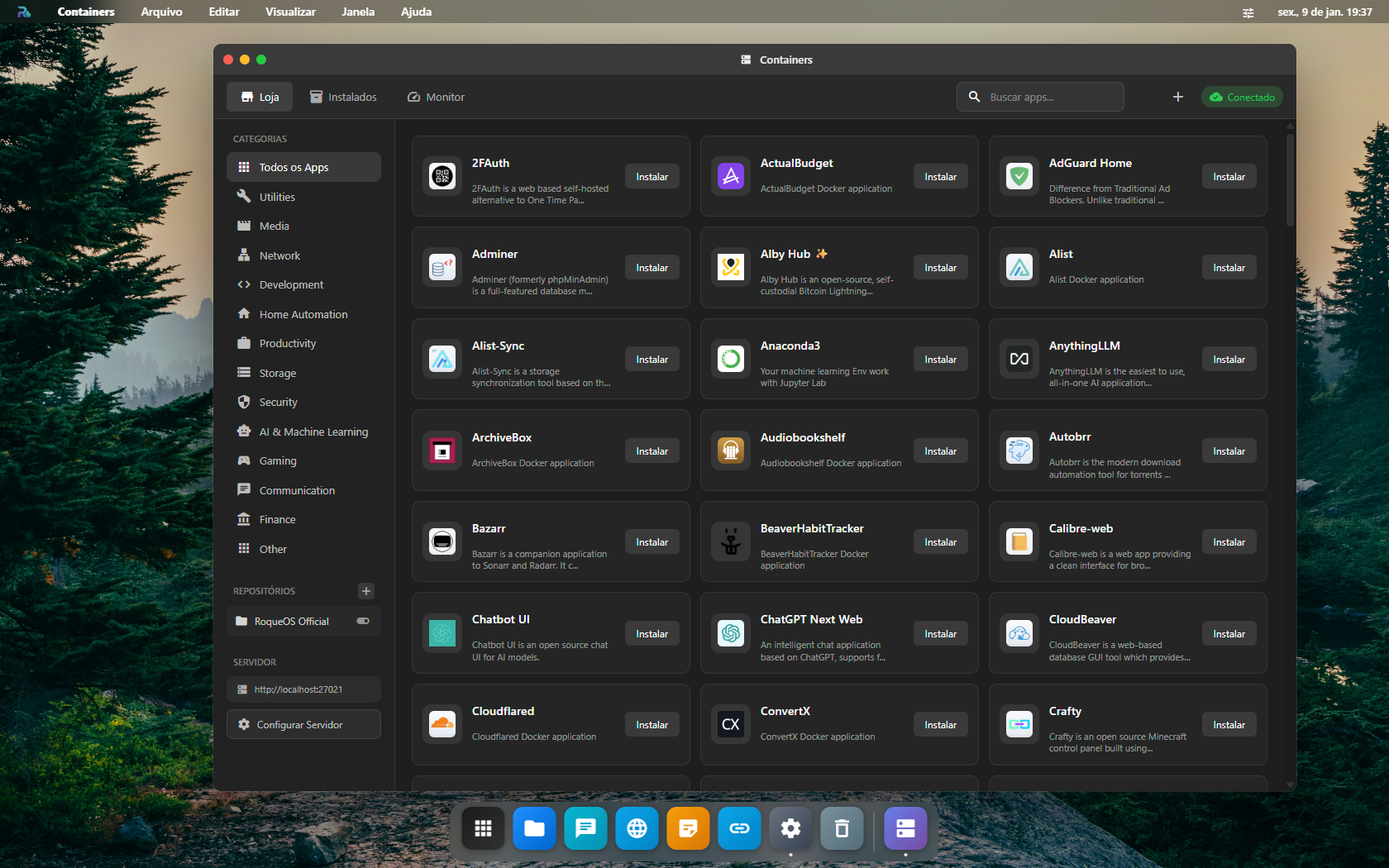
Acessando a App Store
- Certifique-se de estar conectado ao seu RoqueOS Server.
- No Launchpad, clique em App Store.
- Navegue pelo catálogo ou use a busca para encontrar um app.
- Clique em Instalar e aguarde o download da imagem Docker.
Categorias de Aplicativos
📥 Downloads
| App | Descrição |
|---|---|
| qBittorrent | Cliente de torrent com interface web |
| Transmission | Cliente de torrent leve e eficiente |
| JDownloader | Gerenciador de downloads de alta performance |
🎬 Mídia
| App | Descrição |
|---|---|
| Plex | Servidor de mídia pessoal (filmes, séries, músicas) |
| Jellyfin | Alternativa open-source ao Plex |
| Navidrome | Servidor de música estilo Spotify |
🛠️ Desenvolvimento
| App | Descrição |
|---|---|
| code-server | VS Code completo no navegador |
| Gitea | Servidor Git self-hosted (tipo GitHub privado) |
| Portainer | Interface visual para gerenciar o Docker |
🏠 Home & Automação
| App | Descrição |
|---|---|
| Home Assistant | Plataforma de automação residencial |
| Node-RED | Automação visual com fluxos |
| Pi-hole | Bloqueador de anúncios em nível de rede |
📊 Monitoramento
| App | Descrição |
|---|---|
| Grafana | Dashboards e visualização de dados |
| Uptime Kuma | Monitor de disponibilidade de serviços |
| Netdata | Monitoramento de performance em tempo real |
O que acontece quando você clica em Instalar
Gerenciando Apps Instalados
Na aba Meus Apps da App Store, você pode:
- ▶️ Iniciar / Parar containers individualmente
- 🔄 Atualizar para a versão mais recente com um clique
- ⚙️ Configurar variáveis de ambiente e portas
- 🗑️ Remover completamente um app e seus dados
Containers Personalizados
Além do catálogo, você pode instalar qualquer imagem Docker personalizada:
- Na App Store, clique em Instalar App Personalizado.
- Informe a imagem Docker (ex:
nginx:latest). - Configure as portas, volumes e variáveis de ambiente.
- Clique em Criar Container.
Quando a instalação não vai
| O que você vê | O que está acontecendo | O que fazer |
|---|---|---|
| A instalação começa e volta com erro de porta | outro container já usa a porta pedida | troque a porta no formulário de instalação |
| O app instala mas o ícone não abre nada | o container subiu e caiu logo depois | abra o log do container pela aba Instalados; a última dezena de linhas diz o motivo |
| O catálogo aparece vazio | o servidor não conseguiu baixar o catálogo | confira a internet do servidor e se ele está conectado no canto superior direito |
| "Sem espaço em disco" no meio do download | a imagem não coube | libere espaço, ou aponte o volume do Docker para um disco maior |
| O app pede uma pasta e não enxerga o disco | o disco não está mapeado no docker-compose.yml do servidor | ver Volumes e discos |
Requisitos de Recursos
DICA DE PERFORMANCE
Cada aplicativo Docker consome recursos do seu servidor. Verifique as recomendações mínimas de RAM e CPU antes de instalar múltiplos apps pesados. Para servidores com menos de 4 GB de RAM, instale apenas os apps que realmente usa.
Para servidores com poucos recursos, priorize apps leves como qBittorrent, Gitea e Uptime Kuma antes dos mais pesados como Plex ou Grafana.