Server Admin Panel
Administration panel for the connected RoqueOS server, built into the app (Launchpad, Server Admin). The panel at <your-server>:27021/admin still works for emergencies and scripts, but the one in the app is where day-to-day work happens.
Before you start
| You need | Why |
|---|---|
| the server URL on port 27021 | the panel is served by the server itself |
| an admin key | the management sections require the admin permission on the key |
| the server up | a panel that does not open is a stopped server, not a broken panel |
How you get to the panel
When the panel does not open
| What happens | Why | What to do |
|---|---|---|
| The URL does not answer | the server is stopped, or the port is closed | docker ps on the server; check the firewall |
| It opens and refuses the key | the key belongs to another server, or was revoked | create another through first access, if no valid one is left |
| Usage by person says "no permission" | the key in use does not have the admin permission | switch keys in Settings, Server |
| Usage by person says "does not measure" | the server is older than version 1.32 | update it in Features & version |
| The charts stay blank | the panel is not talking to Docker | the Docker card shows Disconnected when that is the case |
| I lost the admin key | it is shown only once, when created | generate another from the panel, or through the setup endpoint on an empty server |
The sections
| Section | What it does |
|---|---|
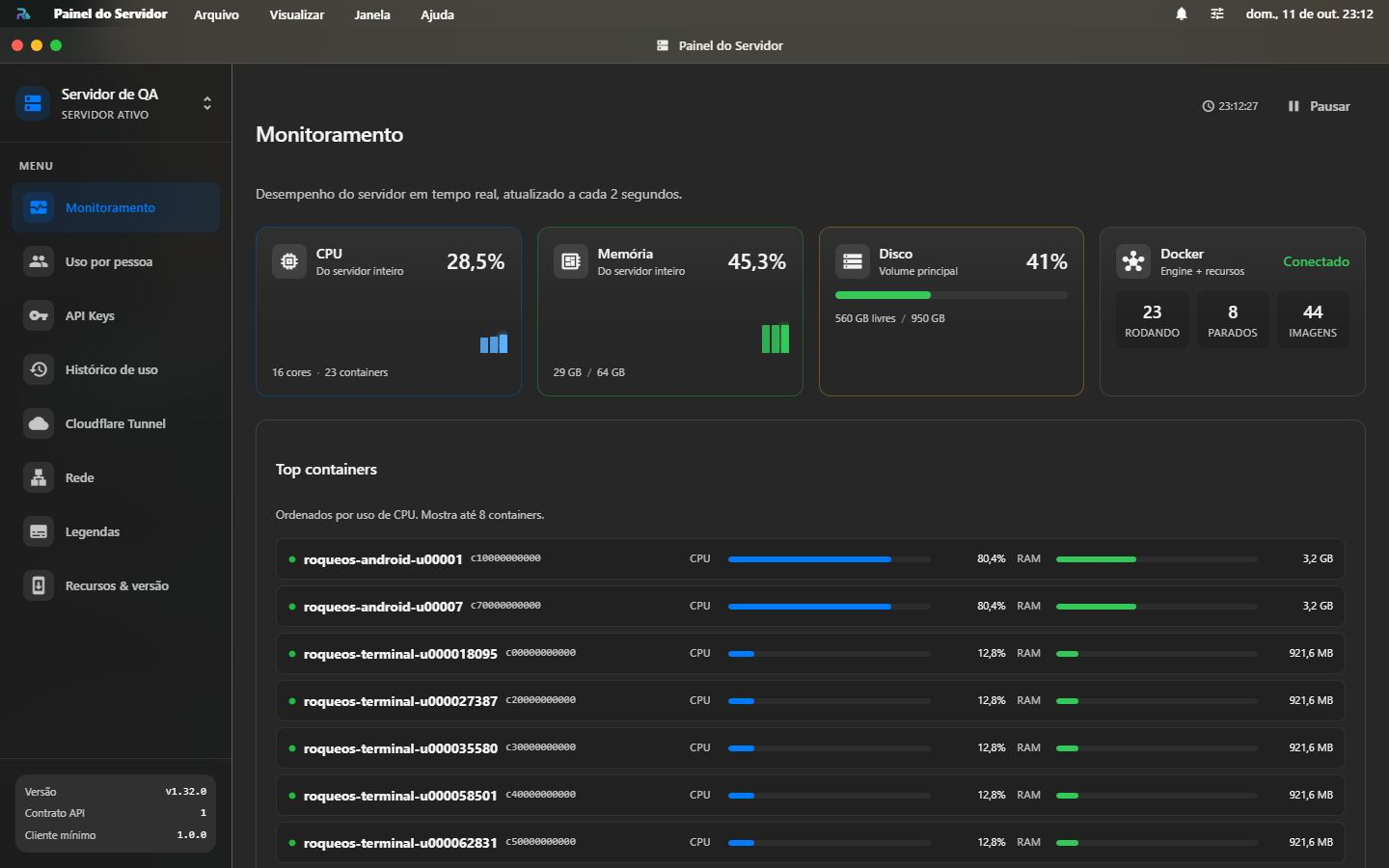
| Monitoring | CPU and memory of the whole server, disk, Docker and the busiest containers |
| Usage by person | How much of the server each person takes up now, and what they used |
| API Keys | Create and revoke keys, see permissions |
| Usage history | Recent requests and the last 30 days of numbers for each key |
| Cloudflare Tunnel | Tunnel status, create and remove routes, list of subdomains |
| Network | Local network IP for direct access |
| Subtitles | OpenSubtitles and SUBDL providers for the Video Player |
| Features & version | Server version, available update, modules turned on |
Monitoring
Refreshes every 2 seconds while the tab is visible. On a 1.32 or newer server, CPU and memory are the whole server's (read from the system itself); on an older server the screen shows the sum of the containers and says so on the card. If the CPU and memory reading fails while the others work, a notice says the numbers may be stale.
Usage by person
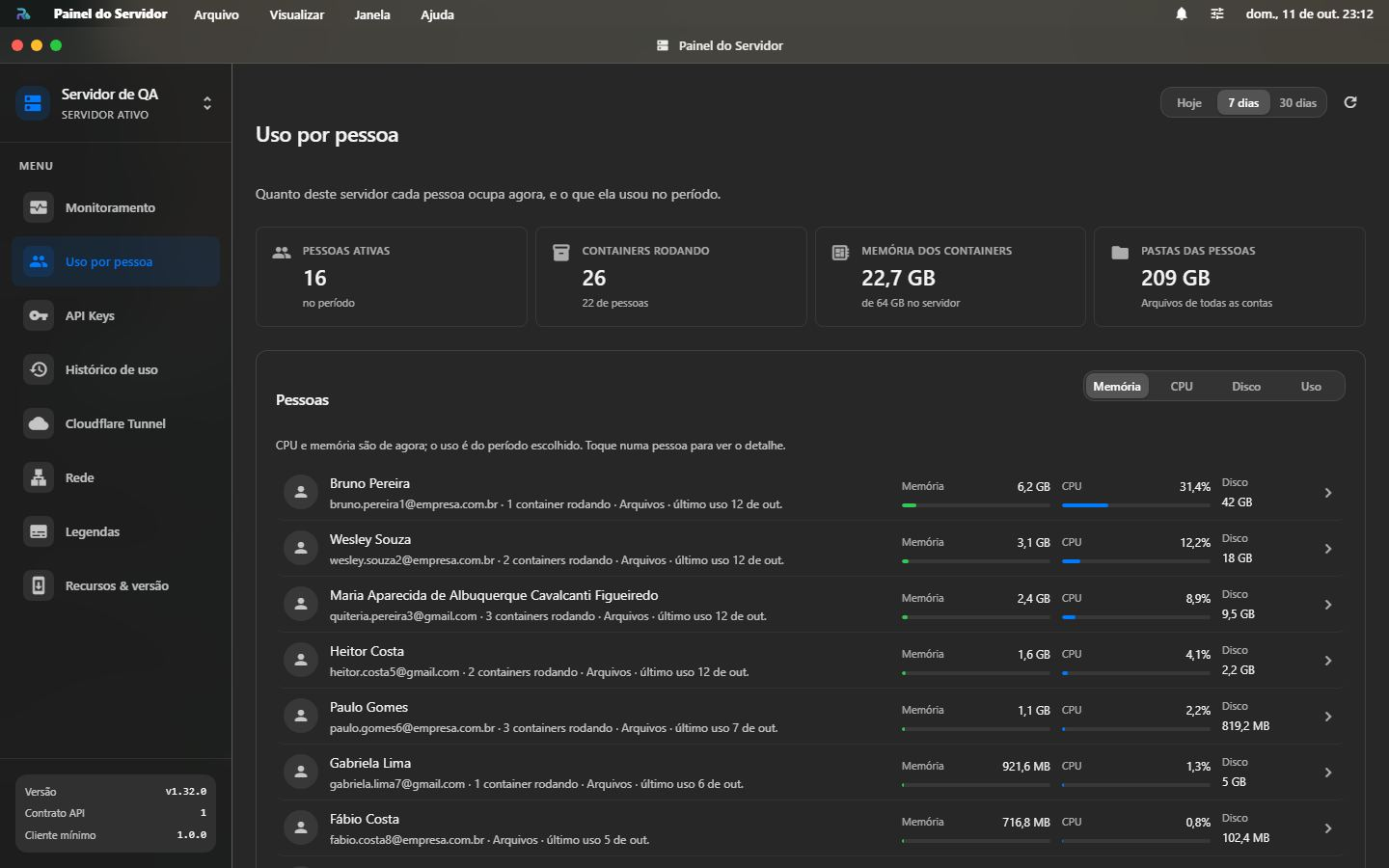
Answers "who is using this server, and how much?". It needs a 1.32 or newer server and a key with the admin permission.
To find who is weighing on the server:
- Open Server Admin from the Launchpad and choose Usage by person.
- Pick the period at the top (today, 7 or 30 days) and sort by Memory or CPU: whoever is at the top takes up the most of the server right now.
- Tap the person to open their sheet: their containers, their folder and what they used, by feature.
- If the weight is a forgotten container, stop or remove it in the Containers app; if it is the folder, the sheet shows its size and when it was measured.
- The four numbers at the top: active people in the period, running containers (and how many belong to people), container memory against the server's memory, and the size of every account's folder.
- The list: each person with memory (the bar is their share of the server's memory), CPU and folder. Sort by memory, CPU, disk or usage. CPU and memory are right now; usage is for the chosen period (today, 7 or 30 days).
- The sheet: tap a person to see each of their containers, their folder size, requests with and without errors, the last day they used it, agent runs with tokens, and what they used grouped by feature (Files, Agents, Apps and containers, AI models and the rest).
- Server apps and services: the containers that belong to no one (apps installed from the catalog, the server's own services), with CPU and memory.
Who each person is: for RoqueOS administrators, the panel shows the account's name and email. For everyone else, it shows "You", the key's name when the usage came from a key without an account, or "Account" with the start of the identifier.
How the server counts: every request made with an identity counts toward that person and the feature used, and the server writes the totals once a minute. Folder sizes are measured every half hour; while the first measurement runs, the disk number waits. Monitoring itself does not count as usage.
Usage history
Picks the first key by itself. The numbers (total, success rate, average time and the split by status) cover the last 30 days; the list shows the 50 most recent requests. The server keeps the history for 30 days.
Features & version
Shows the version, whether there is an update and how to update. Modules turned on from here (RoqueClaw, Android, Windows, RoqueOffice and the others) have a switch; the ones that come from the installation appear under Turned on at install, without a switch, because they change by reinstalling the server with another option.
Demo server
The RoqueOS demo server is for people who do not have their own yet. Non-admins use the apps but do not see Server Admin. Containers and files are cleaned every day.
See also
- Add Server Wizard: how to connect a freshly installed server
- Volumes and backup: where the server's data lives
- install.sh: install and update the server