🌐 This page is not yet translated to English. Showing Portuguese (BR) reference. Help translate this page on GitHub.
Volumes (Discos)
Aprenda a mapear pastas do seu sistema operacional para dentro do RoqueOS Server, fazendo com que elas apareçam como discos reais no Gerenciador de Arquivos do web desktop.
Como Funciona?
O RoqueOS Server roda dentro de um container Docker isolado. Por segurança, ele não tem acesso automático aos arquivos do seu computador ou servidor host.
Para que o Gerenciador de Arquivos consiga ver, editar e organizar suas pastas de downloads, documentos ou mídia, você precisa "montar" esses volumes no Docker — como se estivesse plugando um pendrive.
O caminho de um disco até a tela
Como Configurar
Modifique o arquivo docker-compose.yml adicionando linhas na seção volumes:.
Sintaxe:
Caminho-no-Seu-Computador : /app/disks/NomeDoDiscoREGRA IMPORTANTE
O caminho da direita (dentro do RoqueOS) deve sempre começar com /app/disks/ para que o Gerenciador de Arquivos detecte a pasta e a exiba como um disco.
Exemplos Práticos
# Linux/macOS
volumes:
  - /home/usuario/Documentos:/app/disks/Documentos

# Windows
volumes:
- C:\Users\usuario\Documents:/app/disks/Documentos# Linux/macOS
volumes:
- /mnt/hd-externo/PlexMedia:/app/disks/Media
# Windows
volumes:
- D:\PlexMedia:/app/disks/Media# Linux/macOS
volumes:
- /home/usuario/Downloads:/app/disks/Downloads
# Windows
volumes:
- C:\Users\usuario\Downloads:/app/disks/DownloadsExemplo Completo de docker-compose.yml
version: '3.8'

services:
  roqueos-server:
    image: roqueribeiro1988/roqueos-server:latest
    container_name: roqueos-server
    restart: unless-stopped
    ports:
      - '27021:27021'
    volumes:
      - ./data:/app/data
      - /var/run/docker.sock:/var/run/docker.sock
      # Seus discos personalizados:
      - /mnt/hd-externo/Filmes:/app/disks/Filmes
      - /home/usuario/Downloads:/app/disks/Downloads
      - /home/usuario/Projetos:/app/disks/Projetos
    environment:
      - TZ=America/Sao_Paulo
Antes de começar
| Você precisa de | Por quê |
|---|---|
acesso ao docker-compose.yml do servidor | o mapeamento é declarado ali, não pela tela |
| o disco já montado no sistema do servidor | o Docker monta um caminho que existe; ele não monta o disco para você |
| reiniciar o container depois de editar | mudança de volume só vale em container novo |
Após Configurar
Reiniciar o Servidor
Toda vez que você alterar o docker-compose.yml adicionando ou removendo um volume, precisa recriar o container:
docker compose down && docker compose up -dVerificar os Discos no Frontend
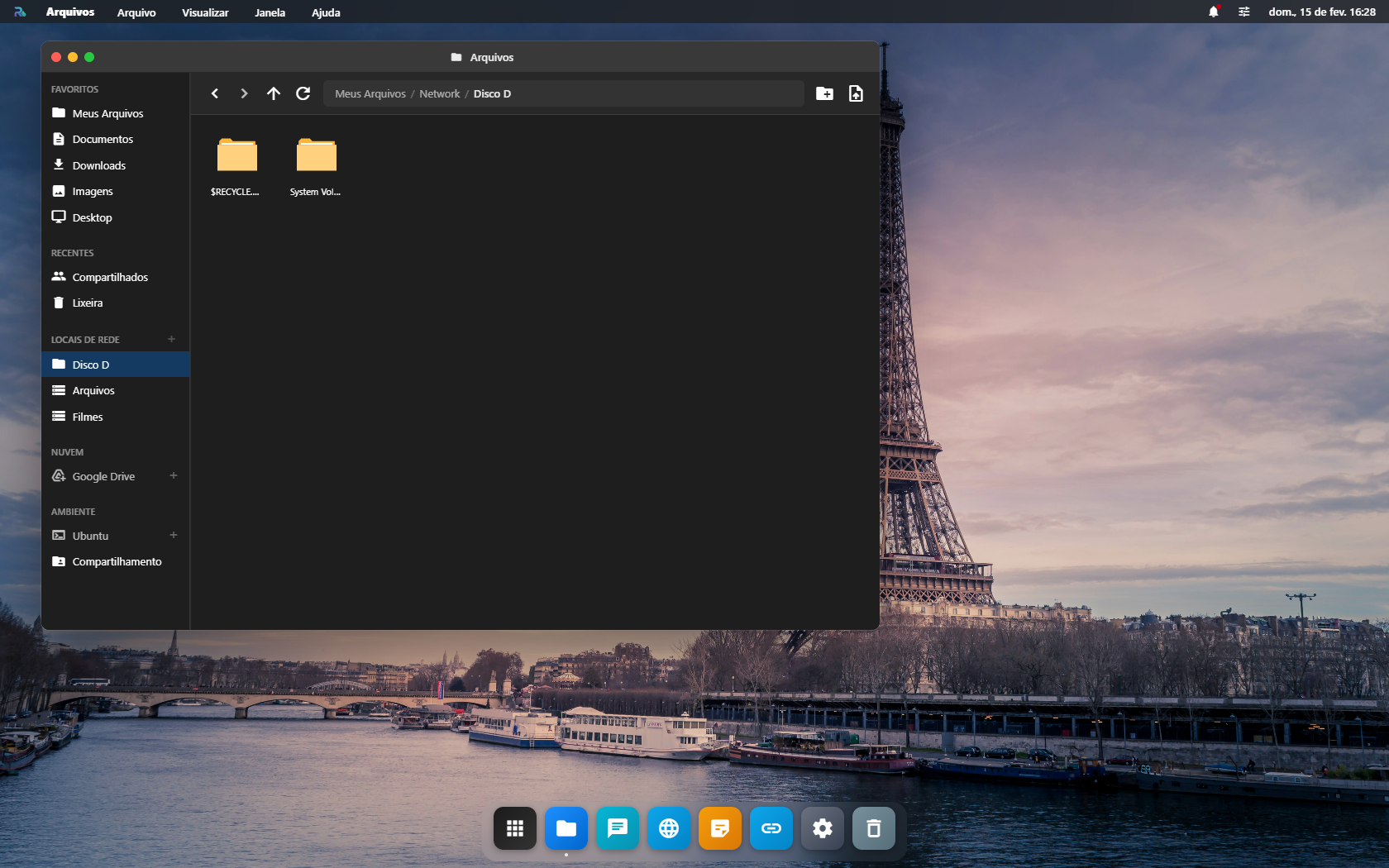
Assim que o servidor reiniciar, abra o Gerenciador de Arquivos no RoqueOS. Você verá novas unidades de disco aparecerem no painel esquerdo, com o exato nome que você escolheu em /app/disks/NOME.
Problemas Comuns
Erro "Acesso Negado" ao editar arquivos
Se ao tentar criar ou deletar arquivos dentro de um disco mapeado você receber erro de permissão, o container Docker não tem autorização para escrever na pasta local. No terminal do servidor host:
# Permissão de leitura e escrita para o dono
chmod -R 755 /caminho/da/sua/pasta/local

# Se precisar de acesso total (tome cuidado)
chmod -R 777 /caminho/da/sua/pasta/local
Disco não aparece no Gerenciador de Arquivos
Verifique se:
- O caminho dentro do container começa com
/app/disks/ - O container foi reiniciado após a alteração do compose
- O caminho no host existe e tem permissão de leitura