🌐 This page is not yet translated to English. Showing Portuguese (BR) reference. Help translate this page on GitHub.
VPS & Configuração de Cloud
Aprenda a implantar e configurar seu RoqueOS Server em uma VPS (Virtual Private Server) para ter acesso global à sua própria plataforma em nuvem 24/7.
O que é uma VPS?
Uma Virtual Private Server é um servidor virtual que você aluga mensalmente de um provedor de nuvem. É a maneira ideal de ter seu RoqueOS Server sempre online, com alta velocidade de internet, sem consumir a energia do seu computador local e com endereços IP públicos confiáveis.
Provedores Recomendados
| Provedor | Destaque | Custo |
|---|---|---|
| Oracle Cloud | "Always Free" Tier com instâncias ARM | Grátis (difícil aprovação) |
| Hetzner | Instâncias ARM super baratas e potentes | €4–10/mês |
| DigitalOcean | Fácil para iniciantes, ótima documentação | $6–12/mês |
| Contabo | Preços imbatíveis para RAM e CPU massivos | $5–15/mês |
Requisitos Mínimos Recomendados
Para uma experiência fluida com RoqueOS e capacidade de instalar apps Docker:
| Recurso | Mínimo | Recomendado |
|---|---|---|
| RAM | 2 GB | 4 GB ou mais |
| CPU | 2 vCPUs | 4 vCPUs |
| Disco | 20 GB SSD | 40 GB+ NVMe |
| OS | Ubuntu 22.04 LTS | Ubuntu 24.04 LTS |
| Arquitetura | amd64 ou arm64 | arm64 (melhor custo) |
O caminho, de uma olhada
Passo a Passo: Do Zero ao Servidor
1. Contrate e acesse a VPS
Após contratar sua VPS e receber as credenciais, acesse via SSH:
ssh root@IP_DA_SUA_VPS2. Atualize o sistema e instale o Docker
apt update && apt upgrade -y
curl -fsSL https://get.docker.com | sh
3. Instale o RoqueOS Server
curl -fsSL https://roqueos.com.br/install.sh | bashOu use a instalação manual com docker compose conforme descrito na página de instalação.
ATUALIZANDO DEPOIS
Para atualizar o servidor numa VPS, use Server Admin → Versão → "Atualizar agora" dentro do RoqueOS, ou rode o script com --update:
curl -fsSL https://roqueos.com.br/install.sh | bash -s -- --updateOs volumes são preservados. Detalhes em Atualizar para nova versão.
Configurando o Firewall
UFW (Linux)
sudo ufw allow 22/tcp    # SSH
sudo ufw allow 27021/tcp # RoqueOS Server
sudo ufw enable
Firewall do Provedor
Em provedores como Oracle Cloud, AWS, GCP e Azure, você também precisa liberar a porta no painel web:
- Vá até as configurações de rede da sua instância.
- Adicione uma regra de entrada (Ingress Rule).
- Permita tráfego TCP na porta
27021(origem:0.0.0.0/0).
Como Acessar
Depois de ter o servidor rodando e o firewall liberado, você tem duas formas de conectar:
Opção 1: Conexão Direta
Acesse usando o IP público da VPS:
http://IP_DA_SUA_VPS:27021AVISO DE MIXED CONTENT
Se você usar o RoqueOS pela versão web HTTPS (https://roqueos.com.br), o navegador bloqueará conexões HTTP puras. Use um túnel Cloudflare ou configure HTTPS para contornar isso.
Opção 2: Cloudflare Tunnels (Recomendado)
Para maior segurança e praticidade. O túnel dá ao seu servidor um domínio seguro (https://...) sem expor nenhuma porta no firewall. O próprio RoqueOS Server tem integração com Cloudflare Tunnels direto do Painel de Administração.
Resultado: https://seu-tunel.trycloudflare.com
Para configurar, acesse o Painel de Admin → Cloudflare e siga as instruções na interface.
Quando a VPS não responde como esperado
| O que você vê | O que está acontecendo | O que fazer |
|---|---|---|
O install.sh termina e o IP não abre | a porta 27021 está fechada no firewall da VPS ou no painel do provedor | libere nos dois lugares: o firewall do sistema e o grupo de segurança do provedor |
| O RoqueOS não conecta na URL da VPS | o RoqueOS está em https e a VPS em http: o navegador bloqueia a mistura | ponha HTTPS na frente da VPS, ou abra o RoqueOS em http:// |
| O servidor cai sozinho depois de um tempo | memória insuficiente — o container é morto pelo OOM killer | confira os requisitos mínimos nesta página; docker logs mostra o encerramento |
| Conecta, mas tudo fica muito lento | a VPS está longe, e o Navegador Remoto e o Terminal são sensíveis a latência | escolha uma região perto de você; ajuste a qualidade em Ajustes → Servidor |
| Perdi a chave de administrador | ela só é mostrada uma vez, no momento da criação | crie outra pelo painel admin em http://SEU_IP:27021 |
Como confirmar que subiu
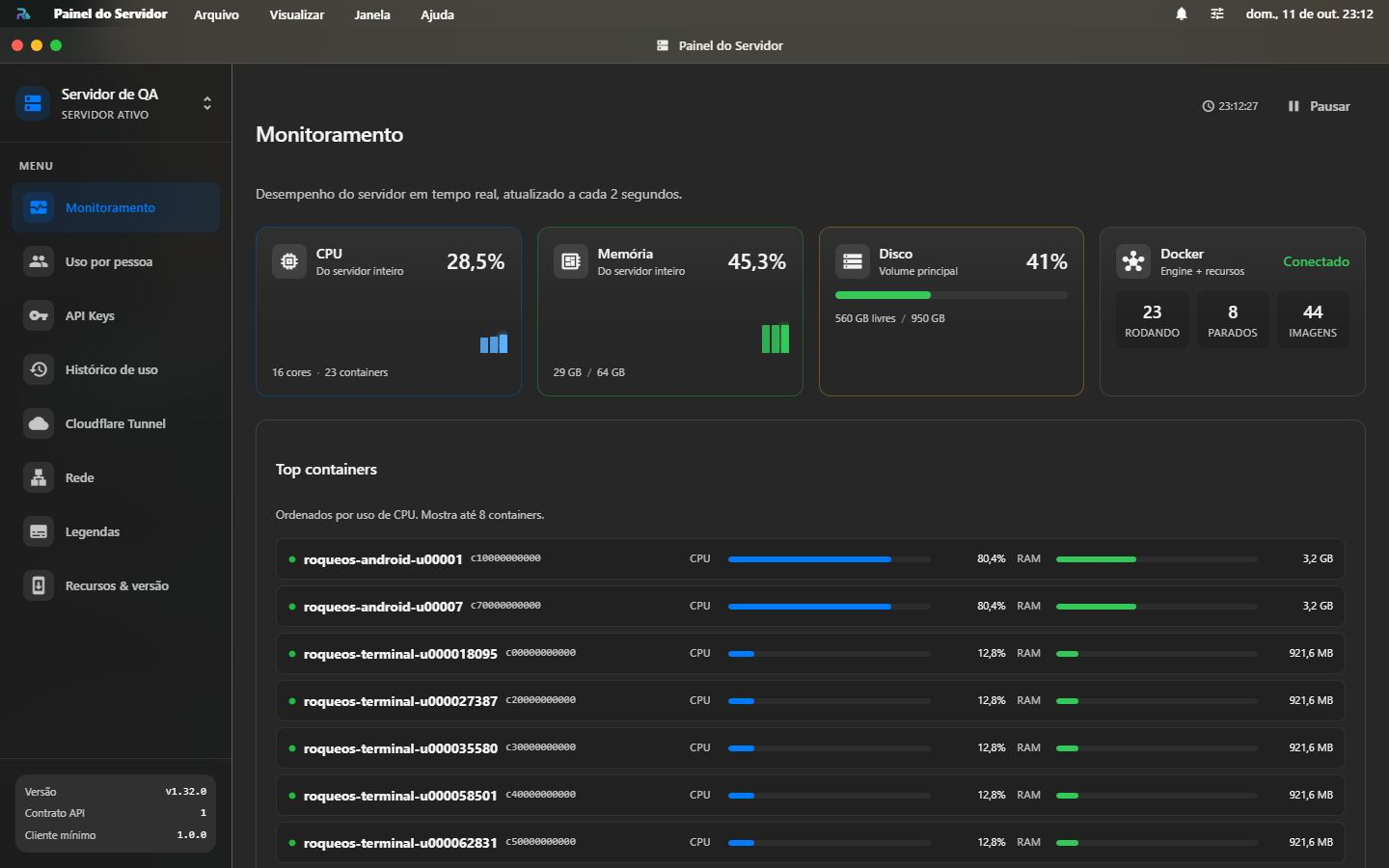
Dicas de Performance e Estabilidade
Criar Arquivo Swap
Se sua VPS tem pouca RAM (1–2 GB), o Swap é essencial para evitar crashes:
sudo fallocate -l 2G /swapfile
sudo chmod 600 /swapfile
sudo mkswap /swapfile
sudo swapon /swapfile
echo '/swapfile none swap sw 0 0' | sudo tee -a /etc/fstab
Configurar Reinício Automático
Certifique-se de que seu docker-compose.yml inclui restart: unless-stopped em todos os serviços. O script de instalação automática já configura isso.
Backups Regulares
Faça backup regular da pasta ./data onde está o docker-compose.yml. Ela contém:
- O banco de dados SQLite com API Keys e configurações
- Metadados dos containers e preferências do admin
tar -czf roqueos-backup-$(date +%Y%m%d).tar.gz ./data